
Beta Version
You're viewing documentation for version v1.1.0. Beta versions are subject to changes and may not represent the final stable release. Do not use in production environments.
Notion
 This integration is currently in beta
This integration has not yet reached a stable release. It’s functional for testing and evaluation but should not be relied upon for production use cases.
See the Current limitations section below for current known issues and planned improvements.
The Notion integration enables backup and restoration of Notion workspaces through the official Notion API. All workspace content—including pages, databases, blocks, and hierarchical relationships—is captured as structured JSON and stored in a Kloset store.
The Notion integration provides two connectors:
| Connector type | Description |
|---|---|
| ✅ Source connector | Back up a Notion workspace into a Kloset store. |
| ✅ Destination connector | Restore a Notion workspace from a Kloset store. |
Installation
The Notion package can be installed using pre-built binaries or compiled from source.
Pre-compiled packages are available for common platforms and provide the simplest installation method.
Note: Pre-built packages require Plakar authentication. See Logging in to Plakar for details.
Install the Notion package:
$ plakar pkg add notion
Verify installation:
$ plakar pkg list
Source builds are useful when pre-built packages are unavailable or when customization is required.
Prerequisites:
- Go toolchain compatible with your Plakar version
Build the package:
$ plakar pkg build notion
A package archive will be created in the current directory (e.g., notion_v1.0.0_darwin_arm64.ptar).
Install the package:
$ plakar pkg add ./notion_v1.0.0_darwin_arm64.ptar
Verify installation:
$ plakar pkg list
Check if the Notion package is installed:
$ plakar pkg list
To upgrade to the latest available version, remove the existing package and reinstall it:
$ plakar pkg rm notion
$ plakar pkg add notion
Existing configurations (stores, sources, destinations) are preserved during upgrade.
Notion API Setup
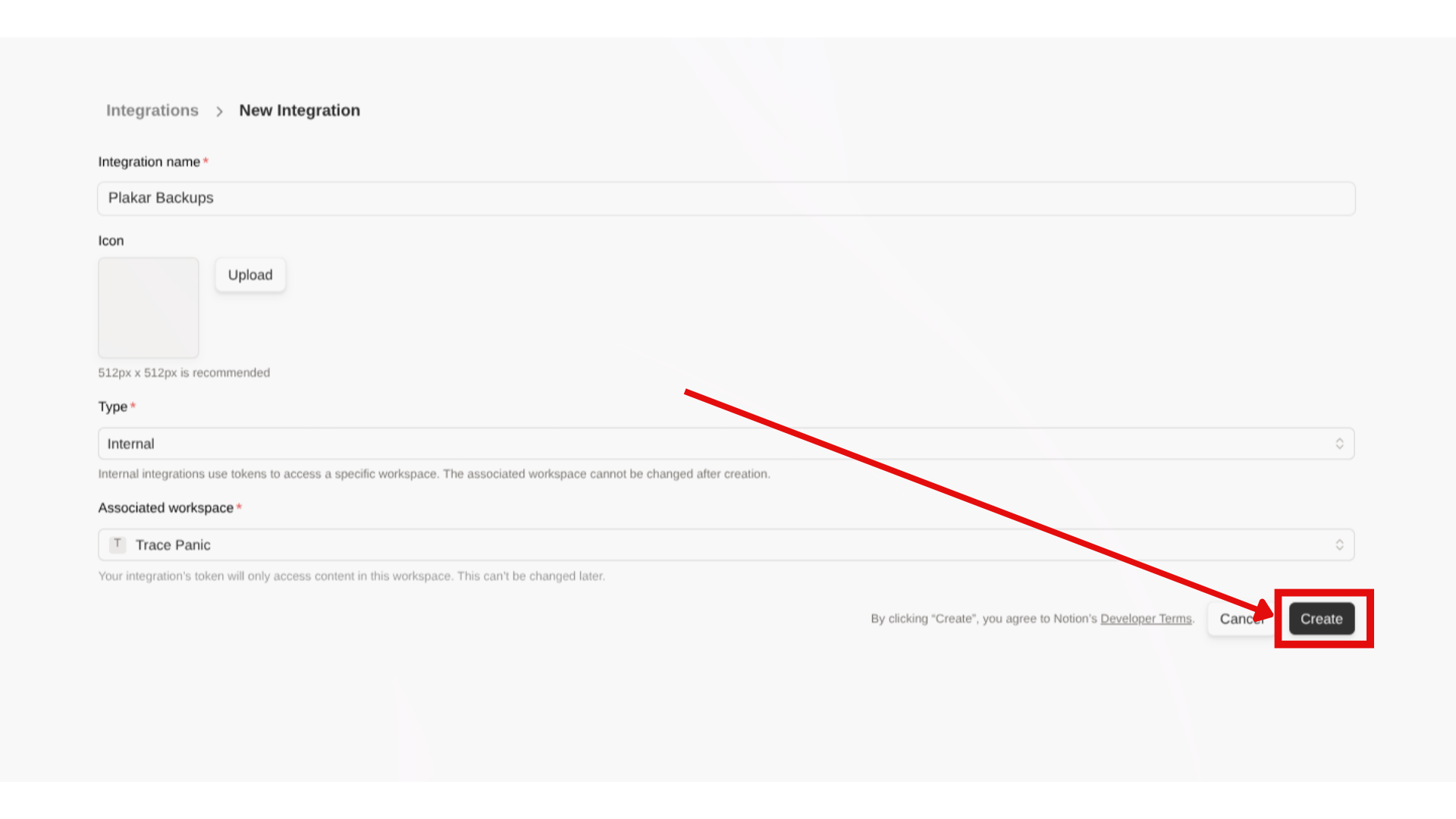
Before using the Plakar Notion integration, you must create an internal integration in your Notion workspace.
Create a Notion integration
- Go to https://www.notion.so/profile/integrations
- Click Create a new integration
- Configure the integration:
- Name: Choose a descriptive name (e.g., “Plakar Backup”)
- Type: Select Internal
- Associated workspace: Select the workspace you want to back up
- Click Create to create the integration
- Click on the Configure integration settings in the success popup
Configure integration capabilities
After creating the integration, you need to enable the required capabilities:
- In the integration settings page, scroll to the Capabilities section
- Enable the following capabilities:
- Read content: Required for backing up pages and databases
- Update content: Required for restoring pages and databases
- Insert content: Required for restoring pages and databases
- Read comments: Required for backing up discussion threads
- Insert comments: Required for restoring discussion threads
- Click Save
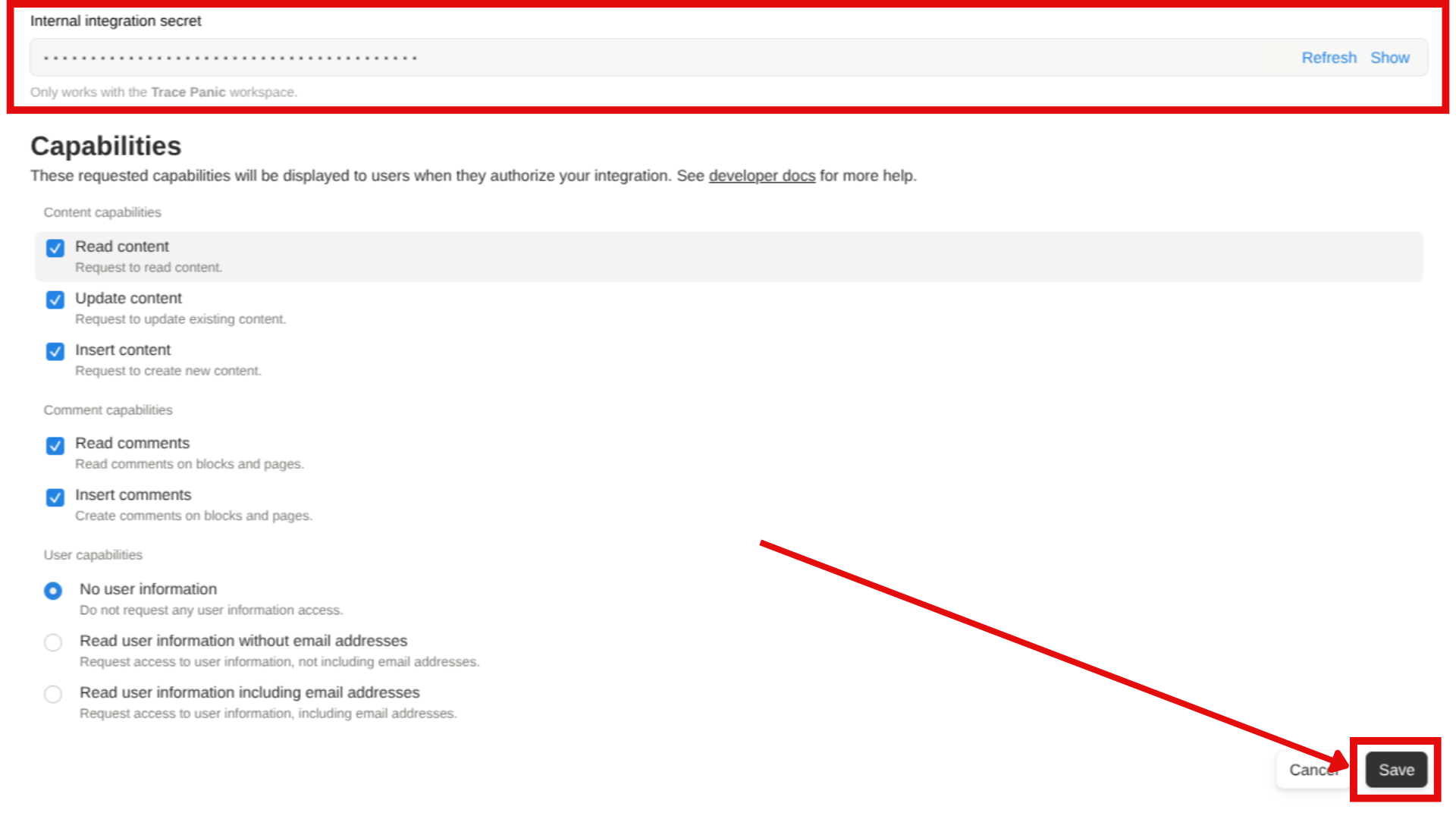
Copy the API token
- In the integration settings page just before the Capabilities section, there’s the token section
- Click Show on the “Internal Integration Secret”
- Copy the token (format:
ntn_xxx...)
 Notion Token
Keep this token secure. Anyone with this token can access and modify pages that have been shared with this integration.
Setup pages access to the integration
You must enable top-level page access to the integration:
- Click on Edit Access
- Select the top-level pages and databases you want to backup
- Click Save
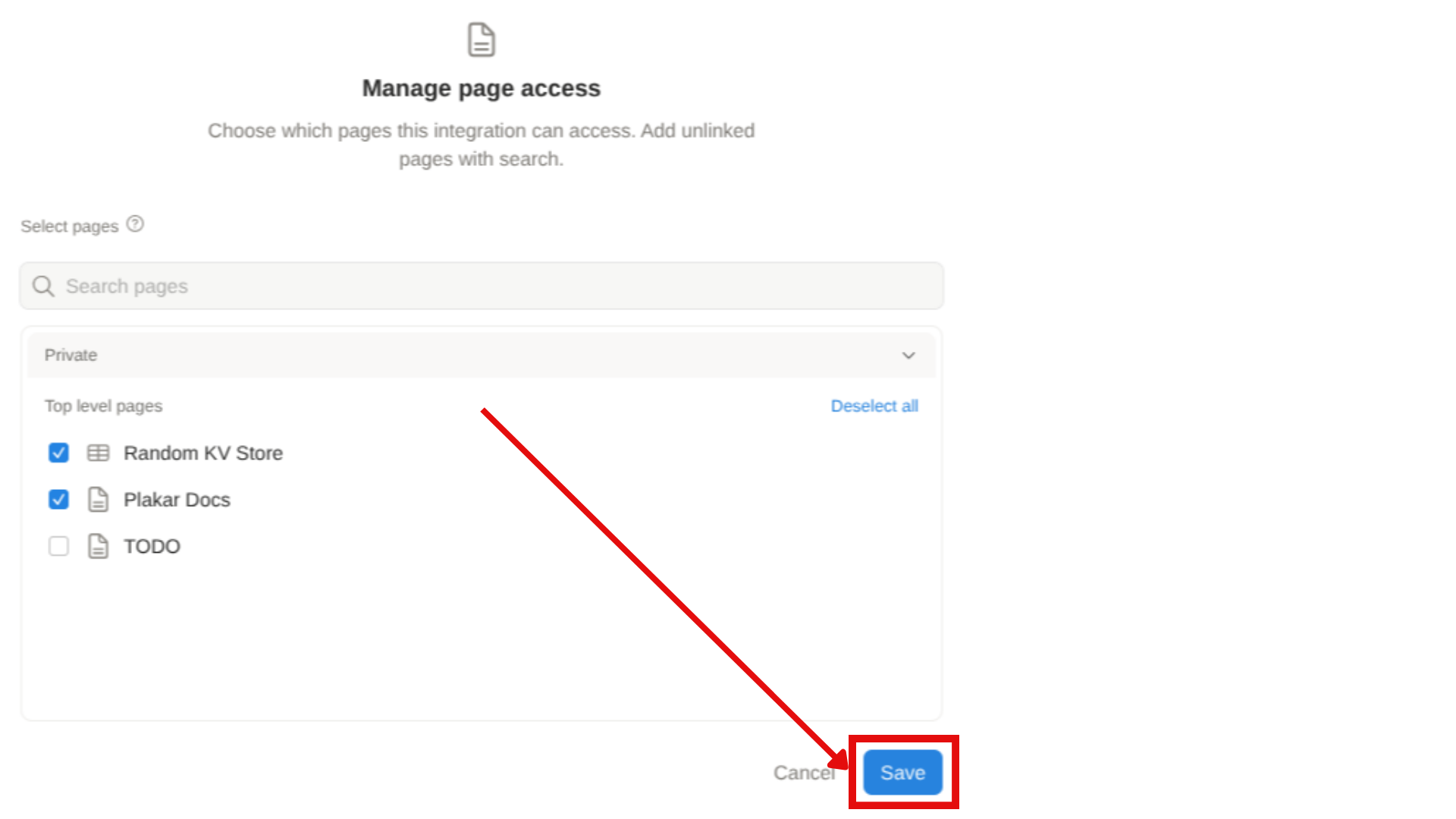
Sharing Pages
Once a page is shared with the integration, all child pages are automatically included during backup. You only need to share top-level pages.
Source connector
The source connector retrieves Notion workspace data via the API and stores it as structured JSON. This includes page content, databases, blocks, metadata, and hierarchical relationships.
Notion source connector" } Transform@{ shape: rect, label: "Transform data as a structured JSON document" } Connector --> Transform end Source --> Connector Store@{ shape: cyl, label: "Kloset Store" } Transform --> Store %% Apply classes class Source sourceBox class Plakar brandBox class Store storeBox %% Classes definitions classDef sourceBox fill:#ffe4e6,stroke:#cad5e2,stroke-width:1px classDef brandBox fill:#524cff,color:#ffffff classDef storeBox fill:#dbeafe,stroke:#cad5e2,stroke-width:1px linkStyle default stroke-dasharray: 9,5,stroke-dashoffset: 900,animation: dash 25s linear infinite;
Requirements
Before configuring the source connector, ensure you have:
- Completed Notion API setup (see section above)
- Notion API token from your integration
- Shared at least one page with your integration
Configuration
Create a Notion source configuration:
plakar source add mynotion location=notion:// token=$NOTION_API_TOKEN
Back up the workspace to a Kloset store:
$ plakar at /var/backups backup "@mynotion"
Configuration options
| Option | Required | Description |
|---|---|---|
location |
Yes | Must be set to notion:// |
token |
Yes | Your Notion API token (format: ntn_xxx...) |
What gets backed up
The source connector captures:
- Pages: All content, blocks, and page properties
- Databases: Structure, properties, views, and all entries
- Media: Images, files, and embedded content (stored as references)
- Comments: Discussion threads and annotations
- Metadata: Creation dates, authors, last edited information
- Relationships: Parent-child hierarchies and database links
Destination connector
The destination connector reads structured JSON from a Kloset store and recreates pages and content in Notion via the API.
Notion destination connector" } Transform --> Connector end Store --> Transform subgraph Destination[Notion] fs@{ shape: cloud, label: "data" } end Connector --> Destination %% Apply classes class Destination destinationBox class Plakar brandBox class Store storeBox %% Classes definitions classDef destinationBox fill:#d0fae5,stroke:#cad5e2,stroke-width:1px classDef brandBox fill:#524cff,color:#ffffff classDef storeBox fill:#dbeafe,stroke:#cad5e2,stroke-width:1px linkStyle default stroke-dasharray: 9,5,stroke-dashoffset: 900,animation: dash 25s linear infinite;
Requirements
Before configuring the destination connector, ensure:
- Completed Notion API setup with insert capabilities enabled
- Created or identified a target page where content will be restored
- Shared the target page with your integration
- Have the Page ID of the target page
Finding a Page ID
You need to get the Page ID of the page where you want to restore the backup contents. To find a Notion Page ID:
- Open the page in Notion
- Click Share in the top right, then Copy link
- The URL format is:
https://www.notion.so/PageName-PAGE_ID - Extract the Page ID (the long alphanumeric string after the last dash)
Example: In https://www.notion.so/MyPage-1234567890abcdef1234567890abcdef, the Page ID is 1234567890abcdef1234567890abcdef.
Configuration
Create a Notion destination configuration:
plakar destination add mynotion location=notion:// token=$NOTION_API_TOKEN
Set the target page ID for restoration:
plakar destination set mynotion rootID=$NOTION_PAGE_ID
Restore a snapshot:
plakar at /var/backups restore -to "@mynotion" <snapshot_id>
Configuration options
| Option | Required | Description |
|---|---|---|
location |
Yes | Must be set to notion:// |
token |
Yes | Notion API token with insert permissions |
rootID |
Yes | Notion Page ID where content will be restored |
Current limitations
- Permission model: Each top-level page must be manually shared with the integration. Pages not explicitly shared will not be backed up, even if linked from shared pages.
- Block compatibility: Some third-party or custom Notion blocks may not serialize perfectly. All standard Notion blocks are fully supported.
- Media restoration: Due to Notion API limitations, media files (images, PDFs, documents) cannot be restored directly. You can restore media to the filesystem and manually re-upload.
- Restoration target: Restoring requires an existing Notion Page ID as the destination. The API does not support creating new top-level pages.
Found a bug or mistake in the documentation? Create an issue on GitHub