Back Up an Exoscale Managed MySQL Database
#This guide backs up an Exoscale Managed MySQL database using mysqldump streamed through Plakar to Exoscale Object Storage (SOS). The result is an encrypted, deduplicated snapshot stored separately from your database infrastructure.
Architecture
#flowchart TB subgraph Client["Backup Client"] MySQLDump["mysqldump"] Plakar["Plakar
stdin integration"] end subgraph DB["Exoscale Managed MySQL"] MySQL["MySQL"] end subgraph Storage["Exoscale Object Storage"] SOS["Kloset Store
(Encrypted & Deduplicated)"] end MySQL -->|SQL dump| MySQLDump MySQLDump -->|stdin| Plakar Plakar -->|Snapshots| SOS
Prerequisites
#- Exoscale account with billing configured
Create MySQL Database
#Provision database
#- Log in to Exoscale Portal
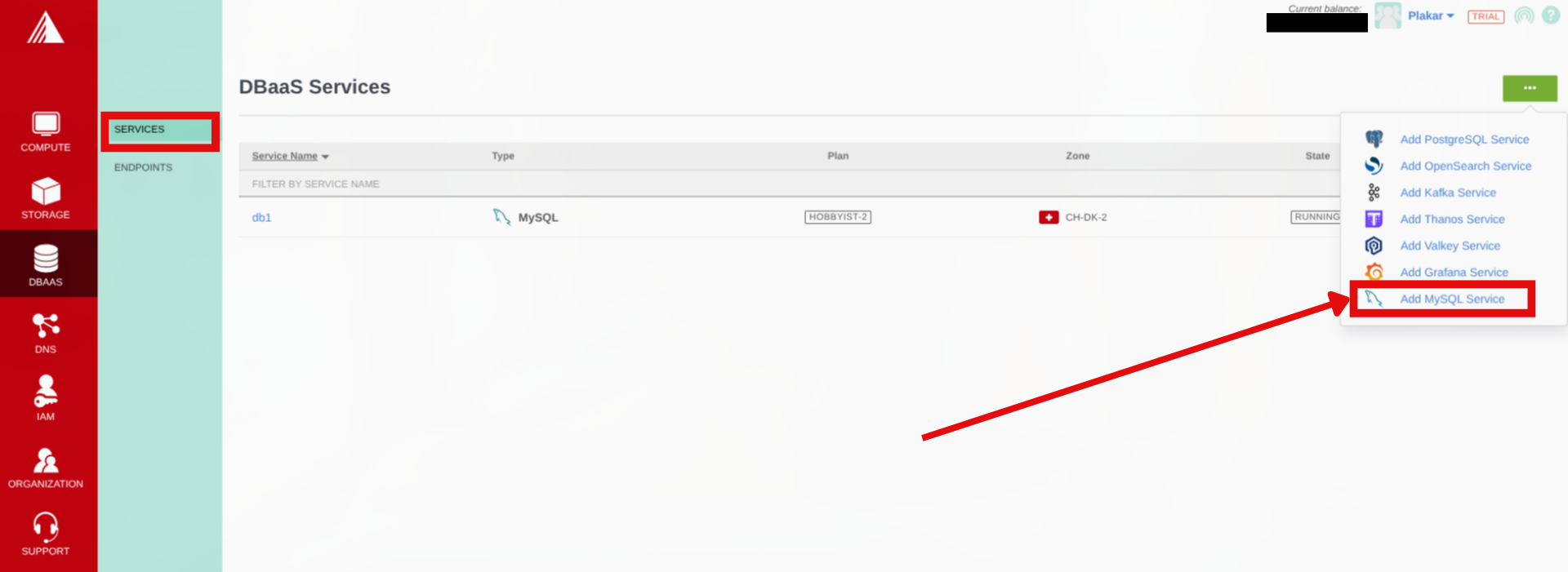
- Go to DBAAS → Services
- Click on the button with an ellipsis icon then select Add MySQL Service from the dropdown
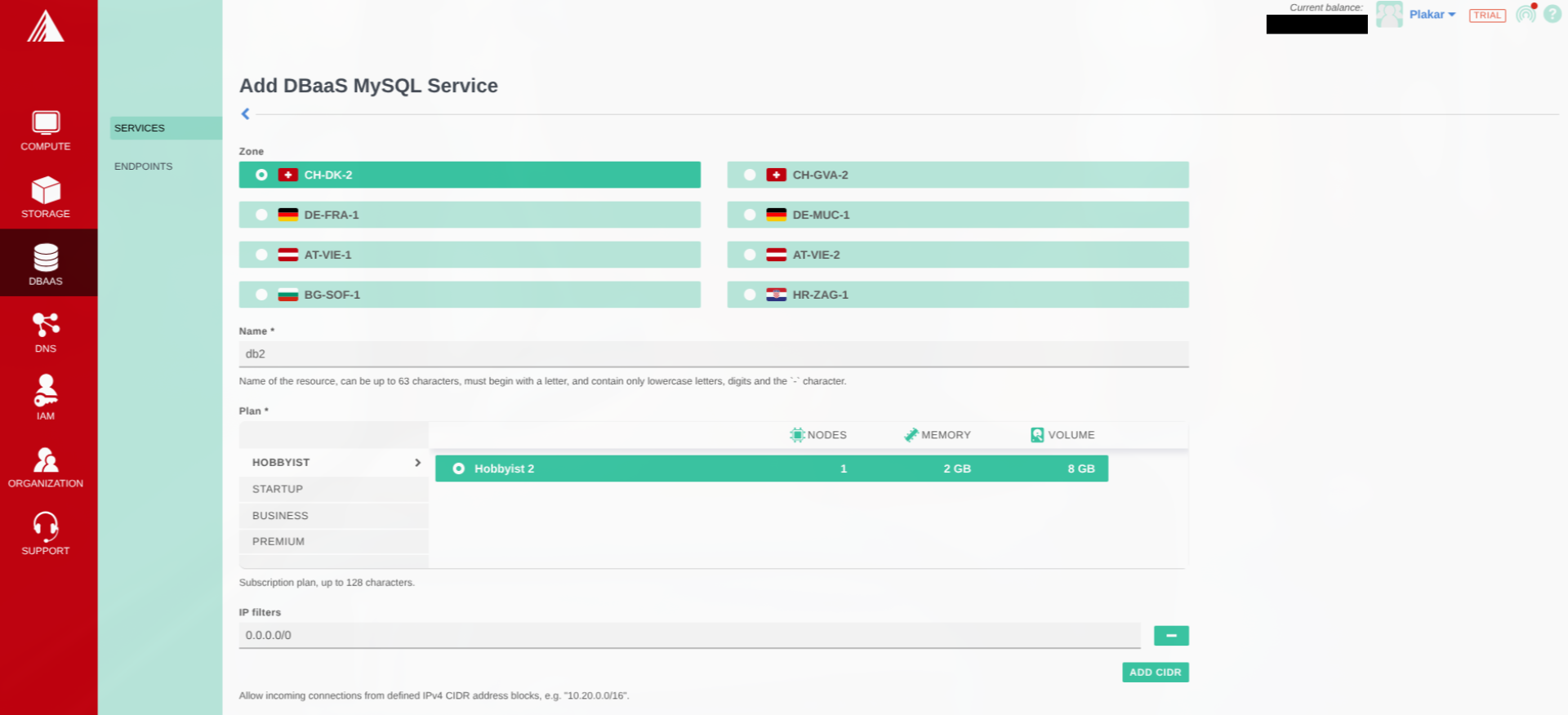
- Configure:
- Zone: Select location
- Database name
- Plan: Select instance size
- IP Filters, click on Add CIDR and enter your IP address to access the database or use
0.0.0.0/0to access it from any IP
- Click Add
Download connection details
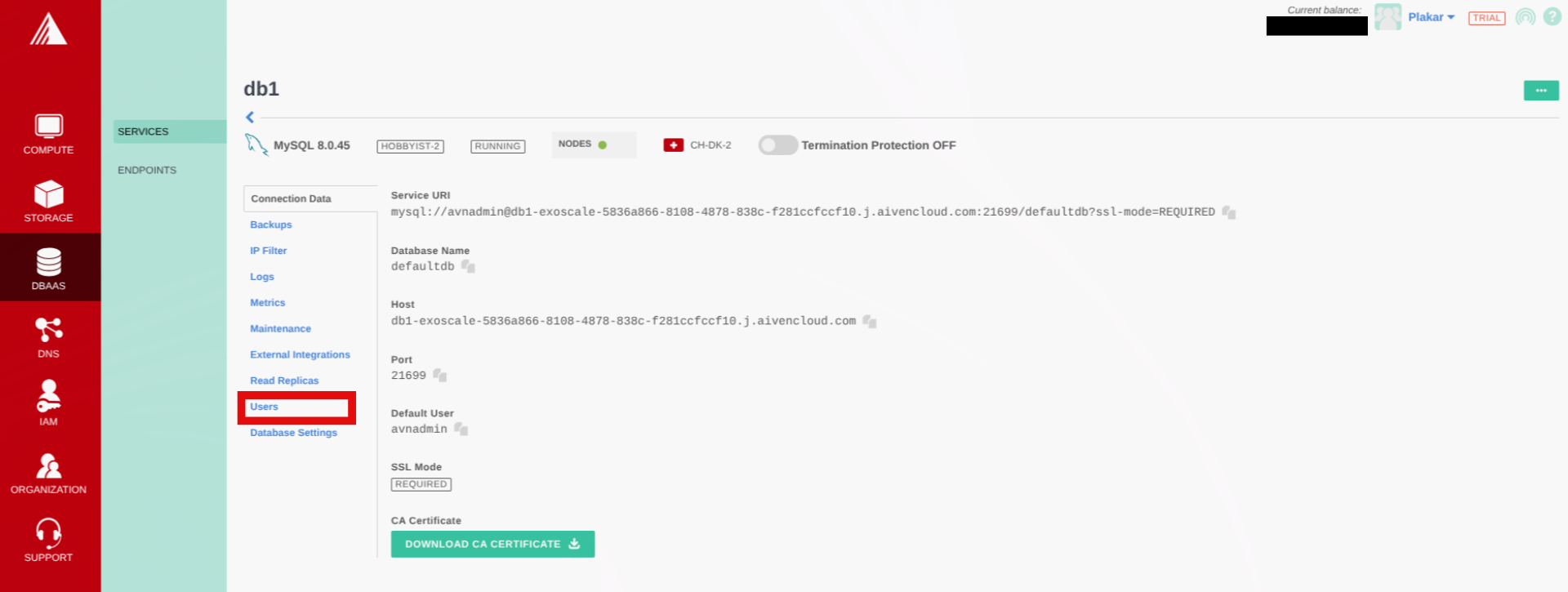
#- In the database connection data tab, download your CA Certificates and get the other connection details.
- In the users tab, save your database user password
Install Tools
#Install MySQL client:
$ sudo apt update
$ sudo apt install mysql-client
Install Plakar using the installation guide.
Configure MySQL Connection
#Set environment variables from connection details:
$ export MYSQL_HOST=<DB_HOST>
$ export MYSQL_TCP_PORT=21699
$ export MYSQL_USER=<DB_USER>
$ export MYSQL_PWD=<DB_PASSWORD>
Configure SSL/TLS with CA certificate:
# Place CA certificate in a secure location
$ sudo mkdir -p /etc/mysql/certs
$ sudo cp ca.pem /etc/mysql/certs/
$ sudo chmod 644 /etc/mysql/certs/ca.pem
Create MySQL configuration file:
$ cat > ~/.my.cnf << 'EOF'
[client]
ssl-ca=/etc/mysql/certs/ca.pem
ssl-mode=REQUIRED
EOF
$ chmod 600 ~/.my.cnf
Test connection:
$ mysql -e "SELECT VERSION();"Configure Object Storage
#Install S3 integration
#$ plakar login -email you@example.com
$ plakar pkg add s3Create Object Storage bucket
#If not already configured, follow: Exoscale Object Storage setup
Add storage connector
#$ plakar store add exoscale-sos-mysql \
location=s3://<SOS_ENDPOINT>/<BUCKET_NAME> \
access_key=<ACCESS_KEY> \
secret_access_key=<SECRET_KEY> \
use_tls=trueReplace:
<SOS_ENDPOINT>: e.g.,sos-ch-dk-2.exo.io<BUCKET_NAME>: e.g.,plakar-backups<ACCESS_KEY>and<SECRET_KEY>: From Exoscale IAM
Initialize store
#$ plakar at "@exoscale-sos-mysql" createBack Up Database
#$ mysqldump --single-transaction \
--routines \
--triggers \
--events \
<DB_NAME> | plakar at "@exoscale-sos-mysql" backup stdin:dump.sqlVerify:
$ plakar at "@exoscale-sos-mysql" lsRestore Database
#Retrieve snapshot ID:
$ plakar at "@exoscale-sos-mysql" lsRestore single database
#$ plakar at "@exoscale-sos-mysql" cat <SNAPSHOT_ID>:dump.sql | mysql <DB_NAME>Troubleshooting
#Connection refused
- Verify
MYSQL_HOST,MYSQL_TCP_PORT,MYSQL_USER,MYSQL_PWDenvironment variables - Check database is running in Exoscale Portal
- Verify network access/firewall rules
Authentication failed
- Confirm user credentials
S3 upload errors
- Check S3 credentials:
plakar store show exoscale-sos-mysql - Verify endpoint URL and bucket name
- Confirm bucket exists in Exoscale Portal
mysqldump not found
- Install MySQL client:
sudo apt install mysql-client