Managing IAM Roles and Service Accounts
Plakar Control Plane requires permissions to access Google Cloud services in different situations. For example, when using Google Cloud Storage, Plakar Control Plane needs permission to read from and write to buckets. Credentials are also used by Google Cloud Inventory to discover resources in your project, and by integrations to manage different resources.
In Google Cloud, access is managed through IAM roles assigned to service accounts. A custom role defines the exact permissions granted, and a service account acts as the identity that holds that role. A service account key is then generated and used by external services such as Plakar Control Plane to authenticate against Google Cloud APIs.
Plakar Control Plane can authenticate to Google Cloud in two ways:
- Service account key: a JSON key generated for the service account and provided to Plakar Control Plane. This works wherever Plakar Control Plane runs, including outside Google Cloud.
- Attached service account: when Plakar Control Plane runs on a Compute Engine instance, the service account can be attached to the instance itself. Plakar Control Plane then obtains credentials from the instance, and no key needs to be generated, stored, or rotated.
This guide walks through creating a custom IAM role, creating a service account, and assigning the role to it. It then covers both ways of using the service account: generating a key, or attaching it to the Plakar Control Plane instance.
Creating a Custom Role
The first step is to create a custom IAM role with the permissions required by the Google Cloud service you want Plakar to use.
The exact permissions depend on the feature you are configuring. For example, the Google Cloud inventory documentation lists the permissions required to discover Google Cloud resources, while the GCS resource documentation lists the permissions required to use a Cloud Storage bucket as a source, store, or destination.
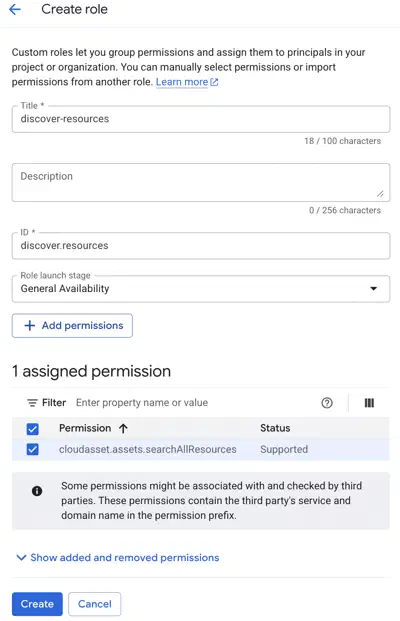
To create a custom role, open IAM & Admin > Roles in the Google Cloud Console and click Create Custom Role under the Custom roles tab. Provide a name and description for the role. You’ll also need to select a role launch stage. The launch stage indicates the maturity of the role and is for organizational tracking purposes only, it does not affect what the role can do. For a role used with Plakar Control Plane, select General Availability. Then add the required permissions. You can search for permissions by name to find the ones you need.
After adding the required permissions, click Create to save the role.
Creating a Service Account
After creating the custom role, create a service account to act as the identity Plakar Control Plane will use when accessing Google Cloud services.
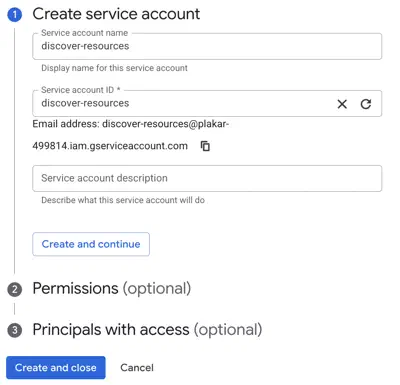
To create a service account, open IAM & Admin > Service Accounts in the Google Cloud Console and click Create Service Account. Provide a name and description for the service account, then click Create and Continue.
On the next step, assign the custom role created in the previous step to the service account. Click Select a role, then under Custom you can find the custom role we created before.
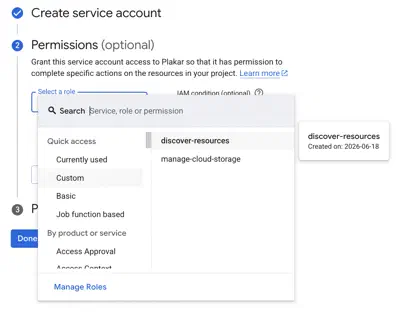
Click Done to finish creating the service account.
Generating a Service Account Key
A key is only required when the service account is not attached to the Plakar Control Plane instance. If you are using an attached service account, skip to Attaching the Service Account to an Instance.
After creating the service account and assigning the role, generate a key for the service account. This key is what Plakar Control Plane uses to authenticate with Google Cloud APIs.
To generate a key, open the service account details page by clicking on the service account in IAM & Admin > Service Accounts. Go to the Keys tab and click Add Key > Create new key.
Select JSON as the key type and click Create. Google Cloud will generate the key and download it to your machine as a JSON file.
Warning
The JSON key file is only available at the time of creation. Store it securely before leaving the page, and treat it as you would any other sensitive credential.
Attaching the Service Account to an Instance
When Plakar Control Plane runs on a Compute Engine instance, the service account can be attached to the instance instead of using a key. Credentials are then issued by the instance and refreshed automatically.
Access from an attached service account is limited by two independent controls:
- IAM roles: the permissions granted to the service account, such as the custom role created above.
- Access scopes: a per-instance setting that restricts which Google Cloud APIs the instance’s credentials can be used for.
A request succeeds only if both allow it. The default access scopes do not
include every API Plakar Control Plane uses. For example, Secret Manager is not
included. With the default scopes, requests fail with a permission error even
when the IAM role grants the required permissions. Set the access scope to
cloud-platform, which allows all APIs, and use IAM roles to control what the
service account can actually do.
The service account and access scopes can be set when the instance is created, as described in the Google Cloud installation guide. To change them on an existing instance, the instance must be stopped first:
gcloud compute instances stop <INSTANCE_NAME> --zone=<ZONE>
gcloud compute instances set-service-account <INSTANCE_NAME> \
  --zone=<ZONE> \
  --service-account=<SERVICE_ACCOUNT_EMAIL> \
  --scopes=cloud-platform
gcloud compute instances start <INSTANCE_NAME> --zone=<ZONE>
Access scopes only apply to credentials issued by the instance. When a service account key is provided, the key’s credentials are used instead and access scopes have no effect.