Using OVHcloud VPS as a Dedicated Backup Server
This guide configures an OVHcloud VPS to automatically back up your servers to Object Storage. The setup uses Plakar to create encrypted, deduplicated snapshots on a scheduled interval with web UI monitoring.
Architecture
- Backup VPS: Runs Plakar and schedules backups
- Source servers: OVHcloud servers to back up
- OVHcloud Object Storage: Stores encrypted backups
flowchart TB
subgraph Sources["Source Servers"]
  Server1["Web Server 1"]
  Server2["Web Server 2"]
  ServerN["Server N"]
end

BackupVPS["Backup VPS
Plakar + Scheduler"]

subgraph Storage["OVHcloud Object Storage"]
  Kloset["Kloset Store
Encrypted & Deduplicated
Backup"]
end

Server1 -->|SSH/SFTP| BackupVPS
Server2 -->|SSH/SFTP| BackupVPS
ServerN -->|SSH/SFTP| BackupVPS
BackupVPS -->|Store Snapshots| Kloset
Prerequisites
- OVHcloud account with billing configured
- SSH access to source servers
- Basic familiarity with Plakar commands
Create Object Storage
Create storage user
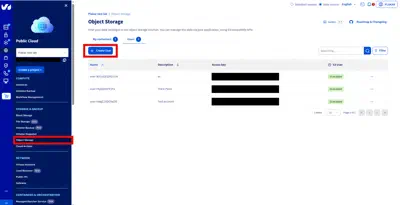
- Log in to OVHcloud Control Panel
- Navigate to Public Cloud → Storage & Backup → Object Storage → Users
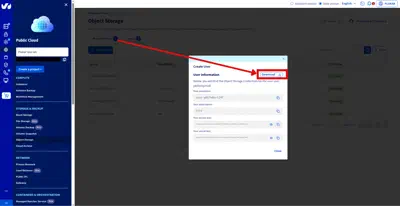
- Click Create User
- Enter description and click Create
- Download and store credentials securely
Create storage container
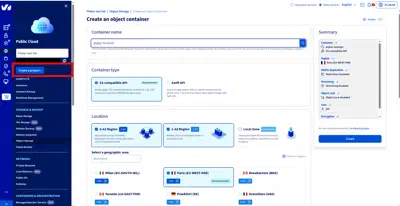
- Navigate to Public Cloud → Storage & Backup → Object Storage
- Click Create an Object Storage container
- Configure:
- Name:
plakar-backups - Container API: S3-compatible API
- User: Select the user created above
- Deployment: Choose 3-AZ (high availability) or 1-AZ (cost efficient)
- Region: Select location closest to your servers
- Name:
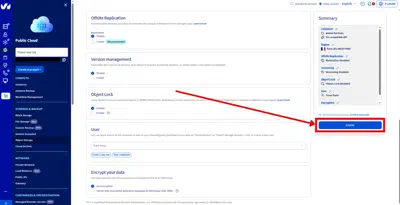
- Click Create
Reference: OVHcloud S3 Object Storage documentation
Provision Backup VPS
Order VPS
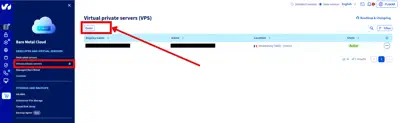
- Go to Bare Metal Cloud → Dedicated and Virtual Servers → Virtual Private Servers
- Click Order → Configure your VPS
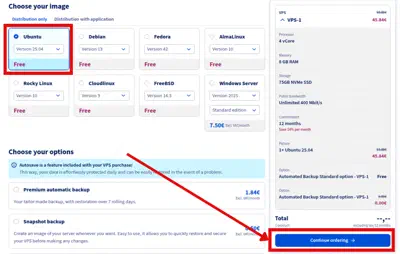
- Select configuration:
- Model: VPS-1 (2 vCores, 8 GB RAM, 75GB Storage) or larger
- Region: Same as Object Storage
- Image: Ubuntu 25.04
- Complete order
Initial connection
Connect using credentials from delivery email:
ssh ubuntu@your_vps_ipChange the temporary password when prompted, then reconnect.
Reference: OVHcloud VPS Getting Started guide
Install Plakar
SSH to the backup VPS and install Plakar:
ssh ubuntu@your-vps-ipFollow the Plakar Installation Guide
Configure Object Storage
Install S3 integration
$ plakar pkg add s3Add storage connector
$ plakar store add ovhcloud-s3-backups \
  location=s3://<S3_ENDPOINT>/<BUCKET_NAME> \
  access_key=<YOUR_ACCESS_KEY_ID> \
  secret_access_key=<YOUR_SECRET_ACCESS_KEY> \
  use_tls=true \
  passphrase='<YOUR_SECURE_PASSPHRASE>'
Replace:
<S3_ENDPOINT>: e.g.,s3.eu-west-par.io.cloud.ovh.net<BUCKET_NAME>: e.g.,plakar-backups<YOUR_ACCESS_KEY_ID>and<YOUR_SECRET_ACCESS_KEY>: From Step 1<YOUR_SECURE_PASSPHRASE>: Strong passphrase for encryption
Note
Passphrase Configuring the passphrase in the store enables automated backups without prompts.
Initialize Kloset Store
$ plakar at "@ovhcloud-s3-backups" createConfigure SSH Access
Install SFTP integration
$ plakar pkg add sftpGenerate SSH keys
$ ssh-keygen -t ed25519 -f ~/.ssh/id_ed25519_plakar -C "plakar@backup"Press Enter for no passphrase.
Copy keys to source servers
$ ssh-copy-id -i ~/.ssh/id_ed25519_plakar.pub user@source-server-1
$ ssh-copy-id -i ~/.ssh/id_ed25519_plakar.pub user@source-server-2
Test access:
$ ssh -i ~/.ssh/id_ed25519_plakar user@source-server-1 'echo "Success"'Create SSH aliases
$ cat >> ~/.ssh/config << 'EOF'
Host source-1
  HostName source-server-1.example.com
  User backupuser
  Port 22
  IdentityFile ~/.ssh/id_ed25519_plakar

Host source-2
  HostName source-server-2.example.com
  User backupuser
  Port 22
  IdentityFile ~/.ssh/id_ed25519_plakar
EOF
Test:
$ ssh source-1 'echo "Alias works"'Configure Backup Sources
Add source connectors for each server:
$ plakar source add web-server-1 sftp://source-1/var/www
$ plakar source add web-server-2 sftp://source-2/var/www
Verify:
$ plakar source showTest Backup
Run a manual backup to verify configuration:
# Single source
$ plakar at "@ovhcloud-s3-backups" backup "@web-server-1"

# Multiple sources
$ plakar at "@ovhcloud-s3-backups" backup "@web-server-1" "@web-server-2"
List snapshots:
$ plakar at "@ovhcloud-s3-backups" lsSchedule Automatic Backups
Plakar has no built-in scheduler. Use a systemd timer to run plakar backup
every day.
Create backup service
$ cat << 'EOF' | sudo tee /etc/systemd/system/plakar-backup.service > /dev/null
[Unit]
Description=Plakar backup of web servers
Wants=network-online.target
After=network-online.target

[Service]
Type=oneshot
User=ubuntu
WorkingDirectory=/home/ubuntu
ExecStart=/usr/bin/plakar at "@ovhcloud-s3-backups" backup -check "@web-server-1"
ExecStart=/usr/bin/plakar at "@ovhcloud-s3-backups" backup -check "@web-server-2"
EOF
Each ExecStart line creates one snapshot per source server. -check verifies
the snapshot right after it is written. The store passphrase comes from the
store configuration, so no prompt is needed.
Note
Use the absolute path to the plakar binary. Run command -v plakar to find
it and adjust /usr/bin/plakar if needed.
Create backup timer
$ cat << 'EOF' | sudo tee /etc/systemd/system/plakar-backup.timer > /dev/null
[Unit]
Description=Run the Plakar backup daily

[Timer]
OnCalendar=daily
Persistent=true

[Install]
WantedBy=timers.target
EOF
Persistent=true runs a missed backup as soon as the VPS is back up. See
Scheduling Backups for cron and other
scheduling options.
Configure Systemd Services
Enable the backup timer
$ sudo systemctl daemon-reload
$ sudo systemctl enable --now plakar-backup.timer
Check the next run and trigger a first backup:
$ systemctl list-timers plakar-backup.timer
$ sudo systemctl start plakar-backup.service
Access Web UI
Option 1: Custom token (recommended)
Update the UI service with a custom token:
$ cat << 'EOF' | sudo tee /etc/systemd/system/plakar-ui.service > /dev/null
[Unit]
Description=Plakar Web UI
After=network.target

[Service]
Type=simple
Environment="PLAKAR_UI_TOKEN=your-secure-token-here"
ExecStart=/usr/bin/plakar at "@ovhcloud-s3-backups" ui -listen :8080
Restart=always
User=ubuntu
WorkingDirectory=/home/ubuntu

[Install]
WantedBy=multi-user.target
EOF
Reload and restart:
$ sudo systemctl daemon-reload
$ sudo systemctl restart plakar-ui
Access: http://your-vps-ip:8080?plakar_token=your-secure-token-here
Option 2: Auto-generated token
Retrieve the token from logs:
$ sudo journalctl -u plakar-ui -n 100 --no-pager | grep -i tokenLook for:
launching webUI at http://:8080?plakar_token=d9fccdbd-77a3-41a0-8657-24d77a6d00acAccess: http://your-vps-ip:8080 with the token from the URL.
Warning
Security Configure firewall to restrict port 8080 access or use a reverse proxy with SSL.
Troubleshooting
Authentication errors
- Verify SSH keys and user permissions on source servers
Can’t connect to Object Storage
- Check S3 credentials and endpoint URL
- Verify passphrase:
plakar store show ovhcloud-s3-backups
Permission denied
- Ensure SSH user has read access to backup directories
Services won’t start
- Check status:
systemctl status plakar-backup.timer - View logs:
journalctl -u plakar-backuporjournalctl -u plakar-ui
Alternative UI access
- Install Plakar locally and configure the same store with OVHcloud S3 credentials to access backups without VPS connection