Backing Up Plakar Control Plane
#Plakar Control Plane can back up its own configuration and database using the same backup workflow you use for any other resource. The process follows the standard steps: create an inventory, register the resource, attach a source connector, and schedule a backup task.
Step 1 — Create a self-managed inventory
#If you do not already have a self-managed inventory to hold the Plakar Control Plane resource, create one now. See Self-Managed Inventory for instructions.
Step 2 — Register the Plakar Control Plane resource
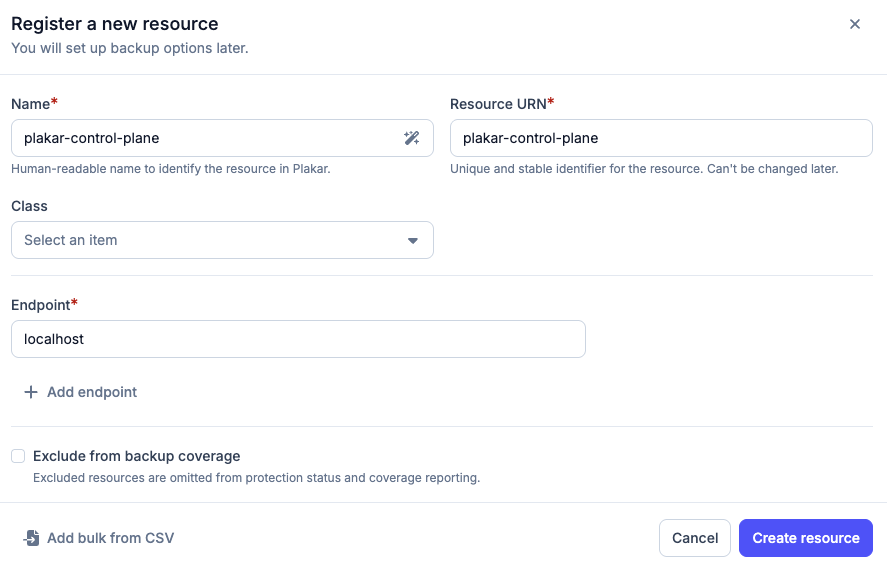
#Inside your self-managed inventory, add a new resource manually with the following values:
| Field | Value |
|---|---|
| Name | Plakar Control Plane (or any name you prefer) |
| URN | plakar-control-plane (or any unique identifier) |
| Hostname | localhost |
Step 3 — Add a source connector using the PCP integration
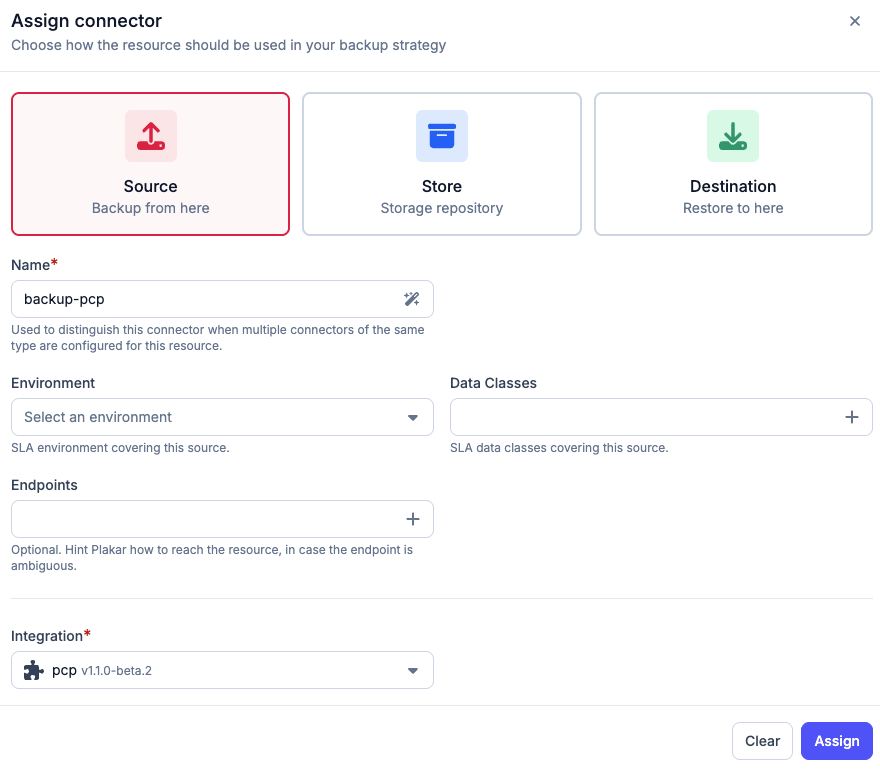
#Once the resource is created, open it and go to the Connectors tab. Add a Source connector and select the PCP integration (PCP stands for Plakar Control Plane).
Step 4 — Schedule a backup task
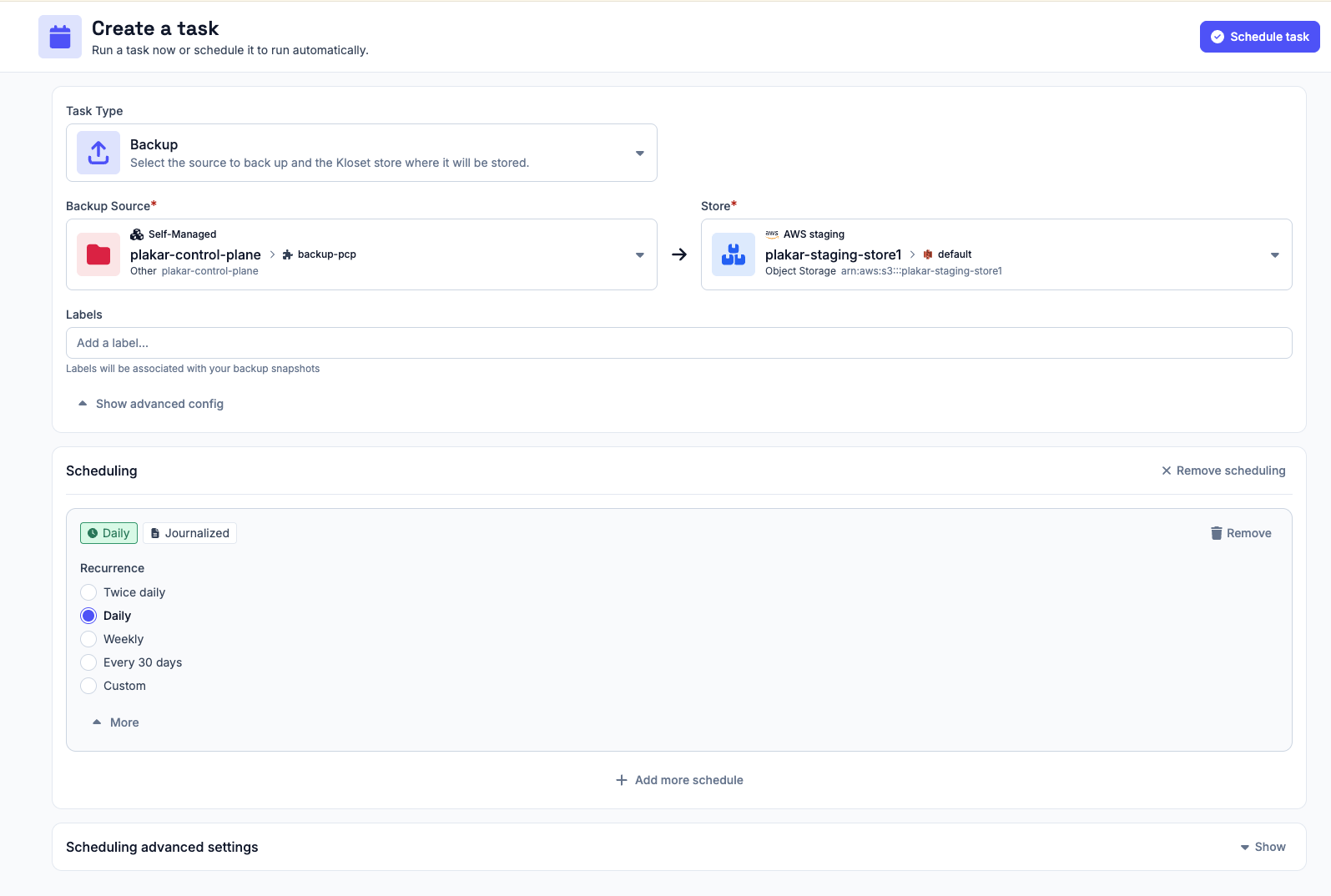
#With the source connector in place, create a backup task to run it on a schedule. You can do this from the connector’s dashboard or from Operations > Scheduling.
Select your PCP source connector as the source and choose a store connector as the destination. Configure a schedule that fits your recovery point objective.
See Scheduling for full details on creating tasks.
What the backup contains
#Once a backup task completes, you can browse the snapshot contents like any other backup. A Plakar Control Plane snapshot includes:
- Important configuration files
- A database dump of the Plakar Control Plane internal database
If you need to recover from this snapshot, see Restoring Plakar Control Plane.