Managing IAM Roles, Users, and Access Keys
#Plakar needs permissions to access AWS services in different situations. For example, AWS inventories need permissions to discover resources such as S3 buckets, EC2 instances, and RDS databases. Other integrations may need permissions to read from or write to S3 buckets.
AWS permissions are usually configured in one of two ways:
- An IAM role attached to the EC2 instance running Plakar Control Plane
- An IAM user with access keys
Use an IAM role when Plakar Control Plane is running on AWS. Use an IAM user with access keys when Plakar Control Plane is running outside AWS or when explicit credentials are required.
Creating an IAM Policy
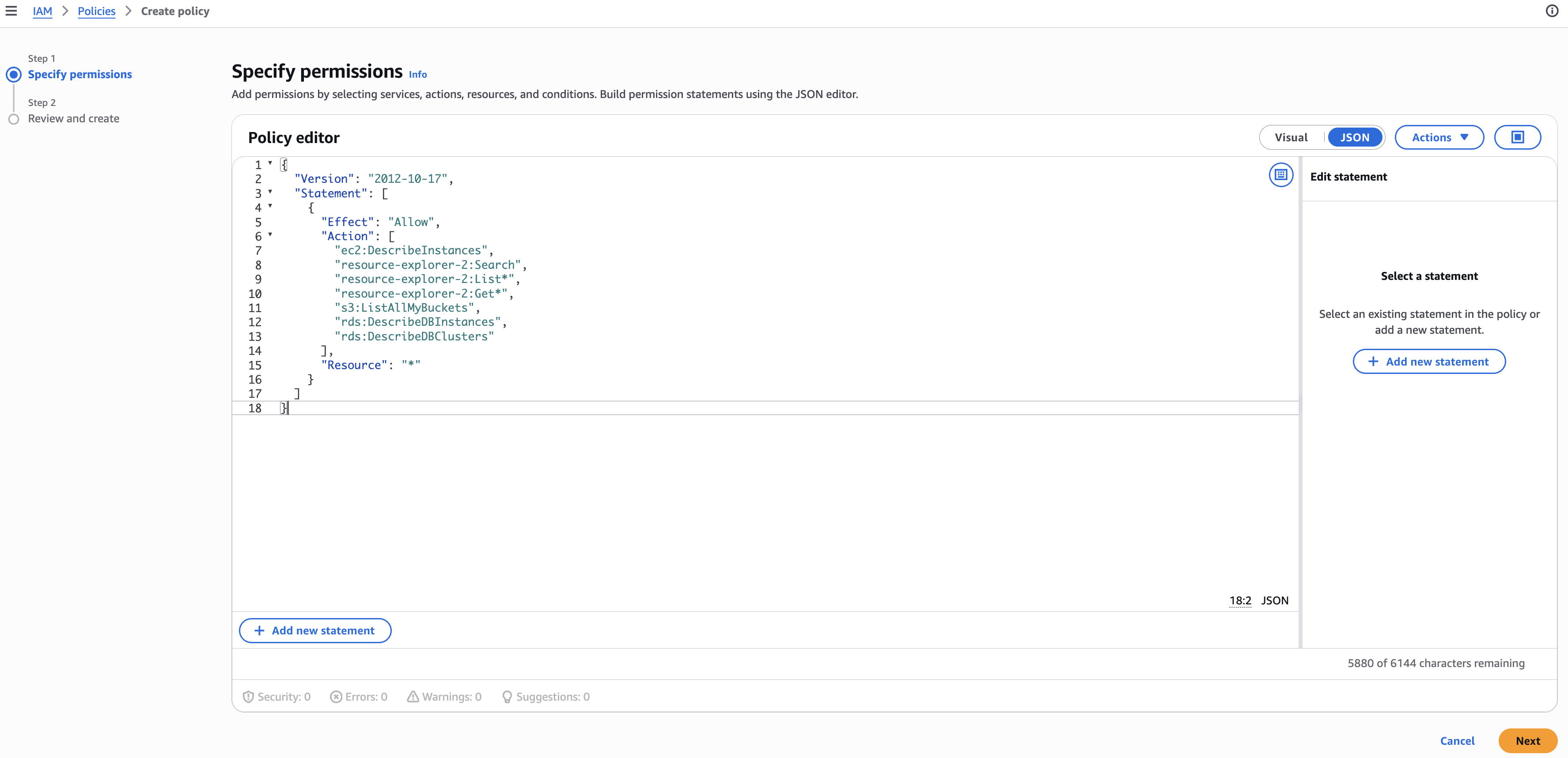
#The first step is to create an IAM policy with the permissions required by the AWS service you want Plakar to use.
The exact permissions depend on the feature you are configuring. For example, the AWS inventory documentation lists the permissions required to discover AWS resources, while the S3 resource documentation lists the permissions required to use an S3 bucket as a source, store, or destination.
You can define the permissions using either the JSON editor or the visual policy editor. After adding the required permissions, provide a name for the policy and create it.
Using an IAM Role
#Use an IAM role when Plakar Control Plane is running on AWS, for example when it is deployed from the AWS Marketplace AMI.
After creating the required IAM policy as shown above, create an IAM role and attach the policy to it. The role should then be attached to the EC2 instance running Plakar Control Plane.
Once the role is attached, Plakar Control Plane can use the permissions granted to the EC2 instance without requiring an access key or secret key. Currently, IAM roles can be used to grant permissions for AWS inventory and AWS Secrets Manager.
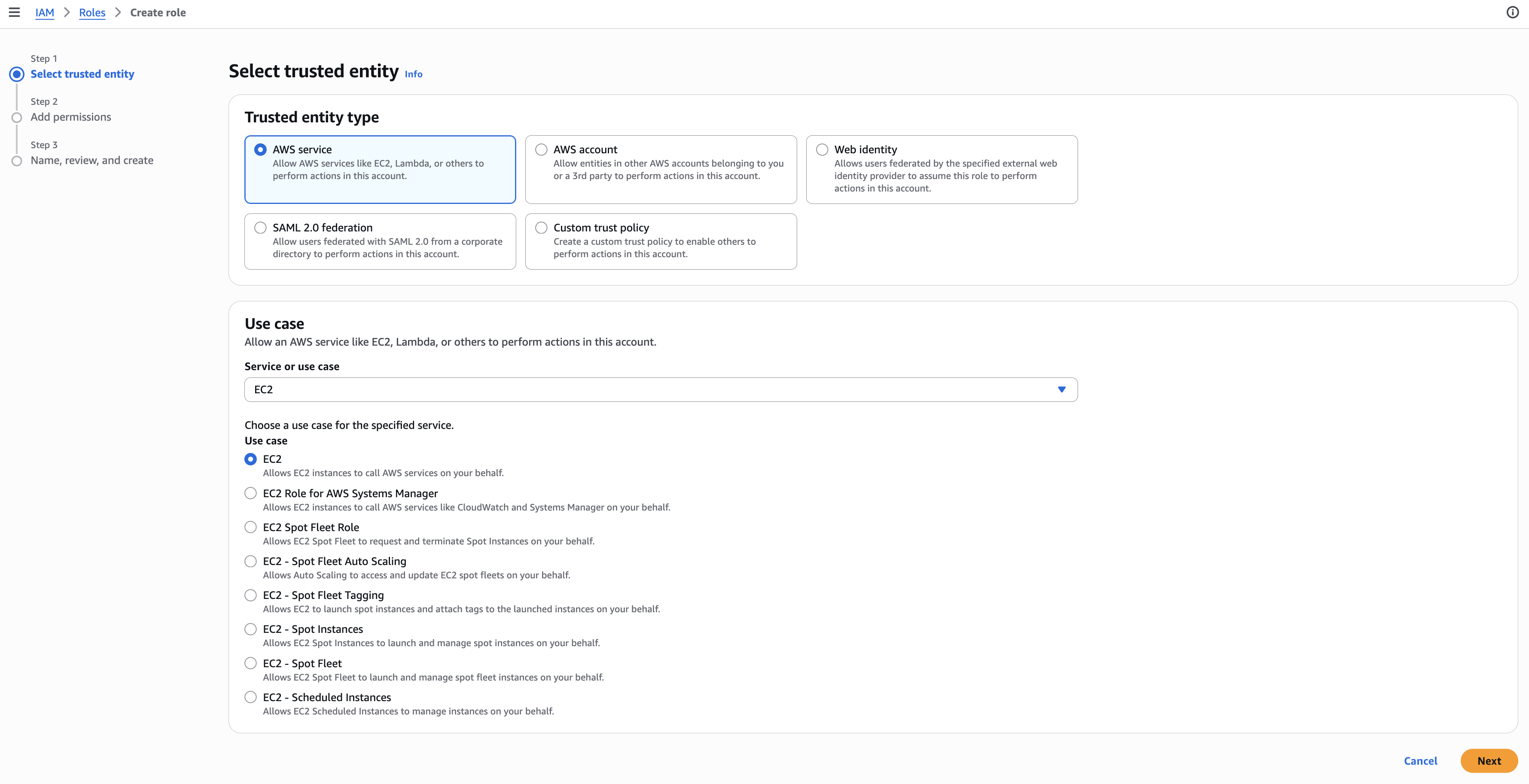
When creating a new role to use with Plakar Control Plane, select AWS service as the trusted entity type and EC2 as the use case, since the role will be attached to the EC2 instance running Plakar Control Plane.
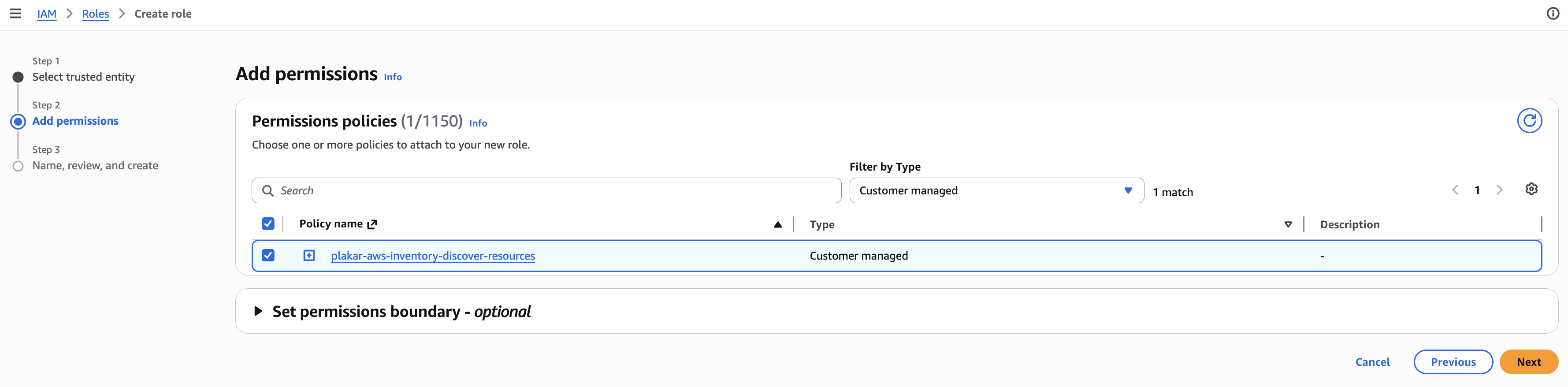
Next, attach the policy created earlier to the role. You can search for the policy by name or filter the policy list to Customer managed to make it easier to find your policy.
Attaching an IAM Role to an EC2 Instance
#To attach the role to the EC2 instance:
- Open the EC2 Instances page in the AWS Console.
- Select the Plakar Control Plane instance.
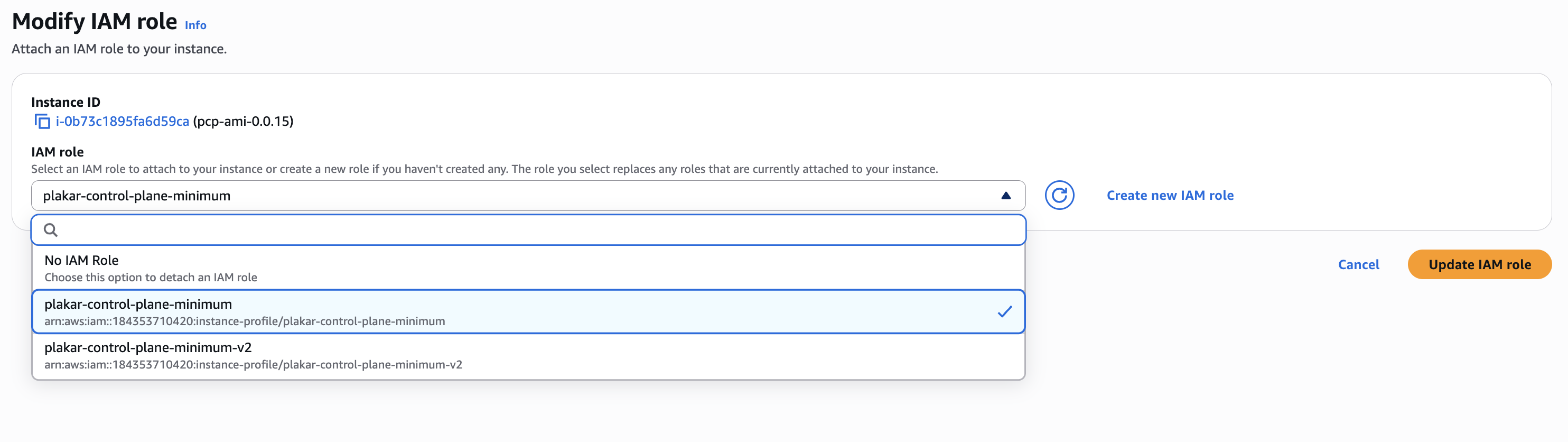
- Open Actions > Security > Modify IAM role.
- Select the IAM role containing the required permissions.
- Save the changes.

Using an IAM User and Access Keys
#Use an IAM user with access keys when Plakar Control Plane is running outside AWS or when an integration requires its own AWS credentials.
After creating the required IAM policy as shown above, create an IAM user, attach the policy to that user, then generate an access key for the user.
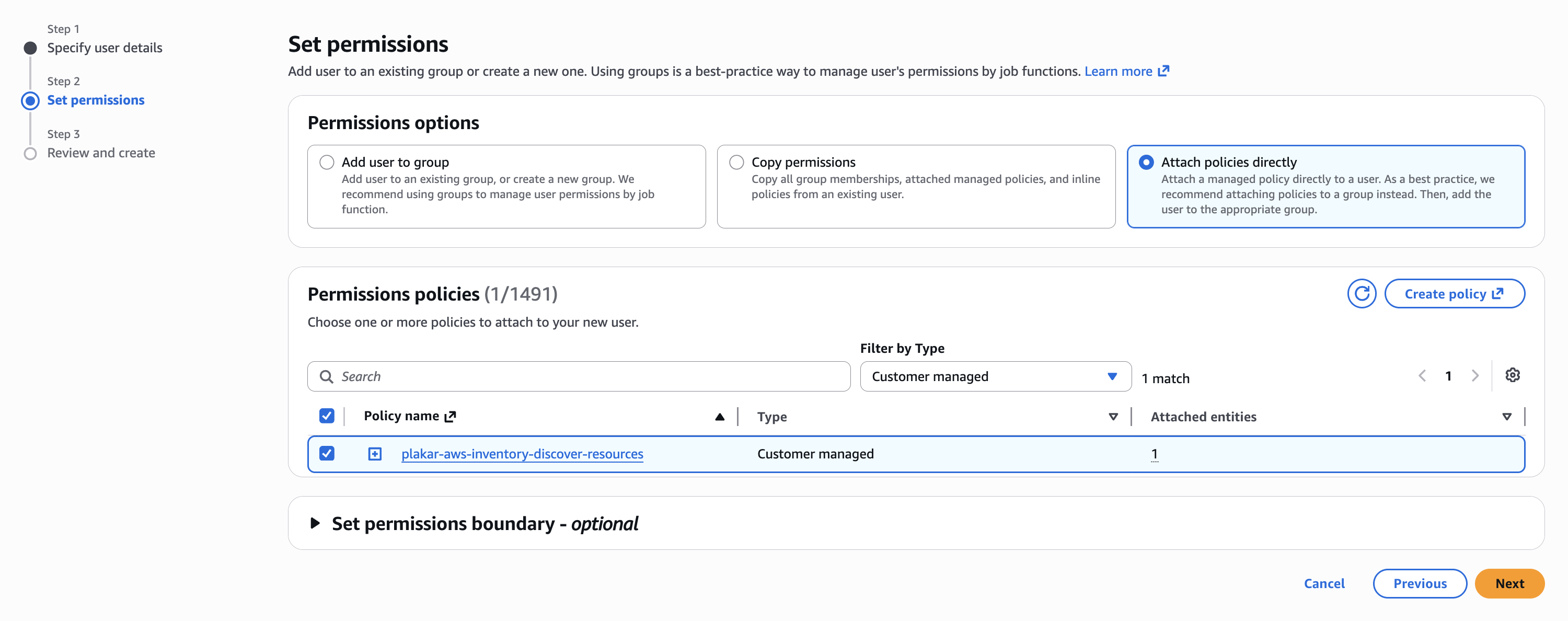
To create an IAM user, provide a name for the user, then select Attach policies directly as the permissions option. This allows you to attach the policy created earlier directly to the user.
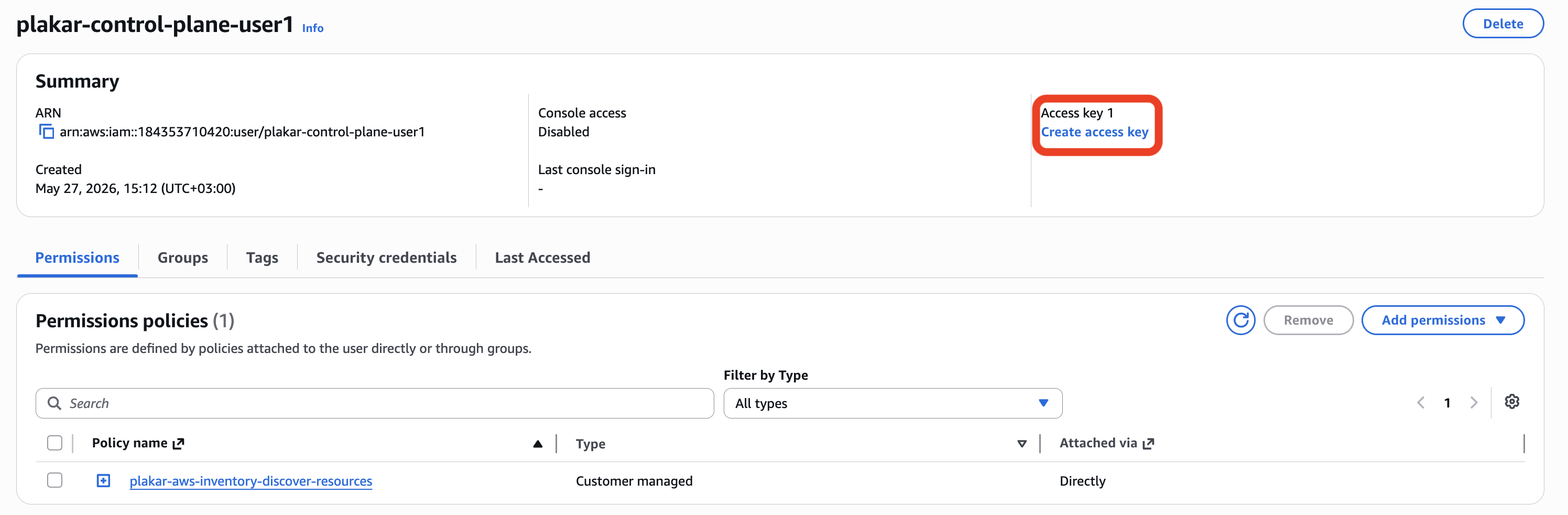
You can then create an access key for this user from the user details page.
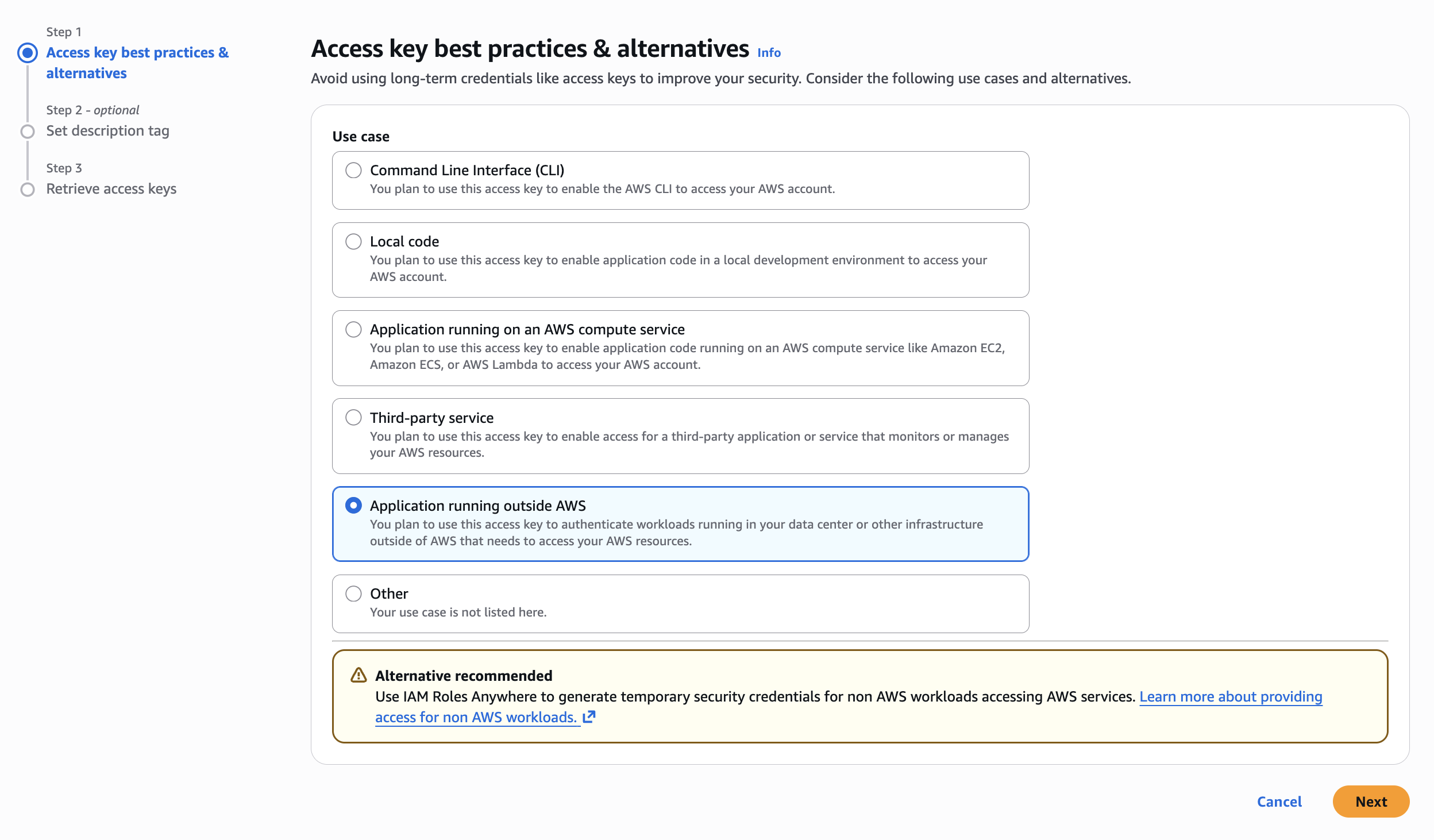
When creating an access key, AWS asks you to select a use case. For Plakar Control Plane deployments running on AWS EC2 instances, select Application running on an AWS compute service. For deployments outside AWS, select Application running outside AWS.
After creating the access key, AWS shows an access key ID and a secret access key.
Warning
The secret access key is only shown once. Store it securely before leaving the page.