Scheduling
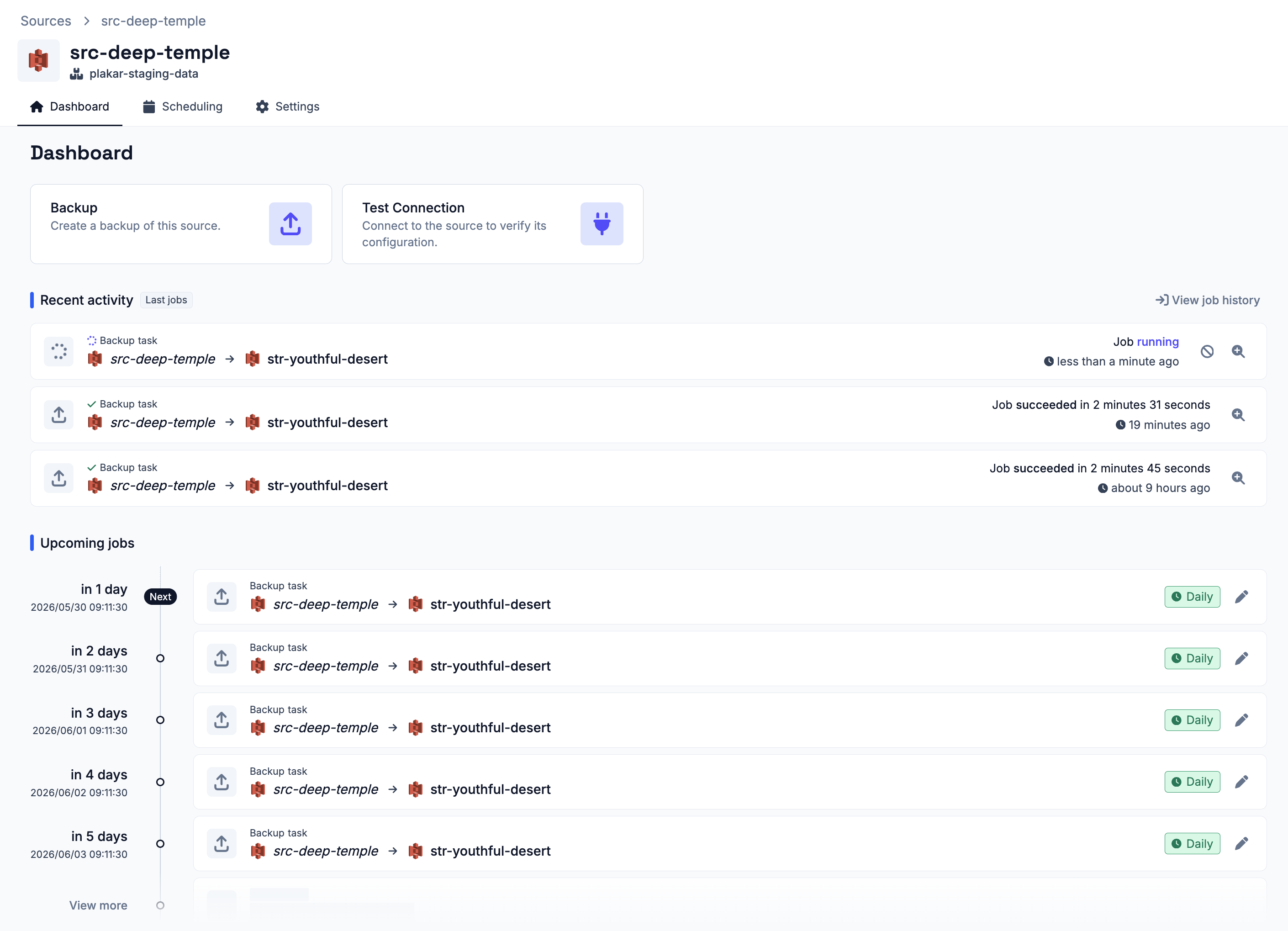
#Plakar Control Plane uses a scheduler to run backup, restore, sync, and check operations. A task can be run once as a one-off operation, attached to a schedule so that it repeats automatically, or both.
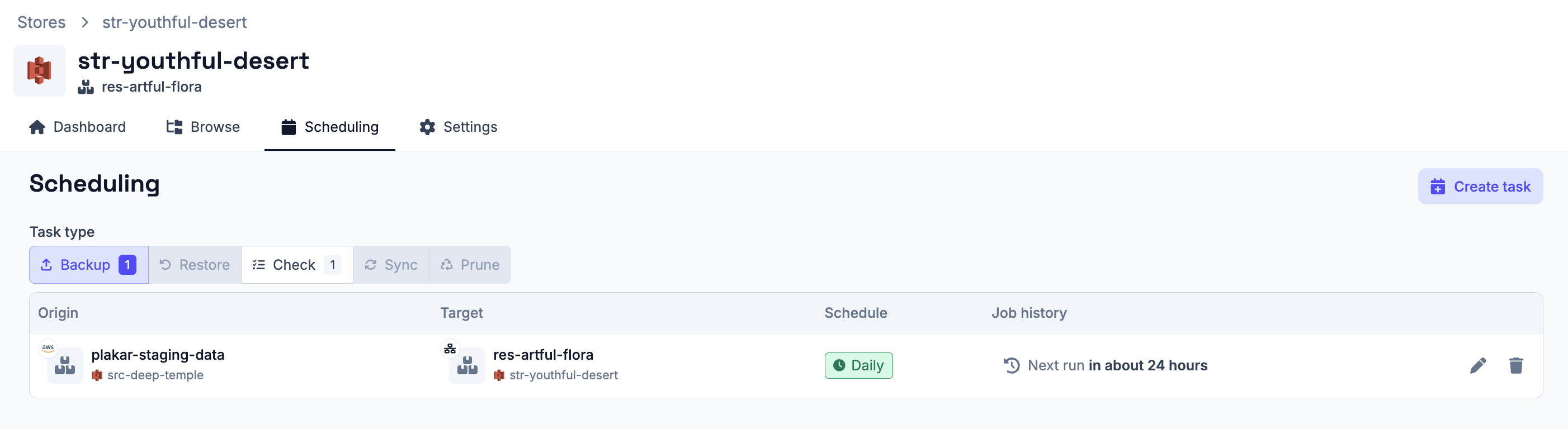
You can create scheduled tasks from two places: the Operations > Scheduling section in the sidebar, or directly from a connector’s dashboard. Both lead to the same task configuration.
Creating a Task
#Task Type
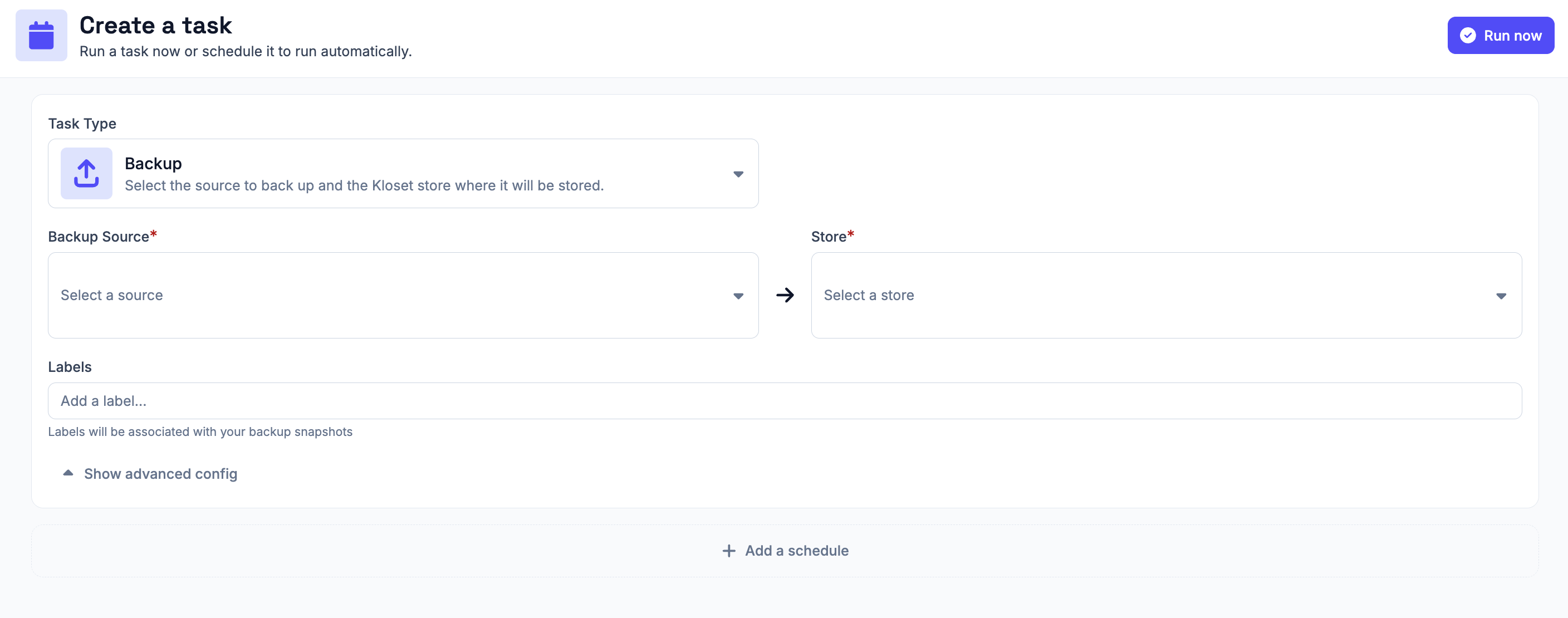
#Start by selecting the type of task you want to run:
- Backup - back up a source connector to a store connector
- Restore - restore data from a store connector to a destination connector
- Sync - copy backup data from one store connector to another
- Check - verify the integrity of data in a store connector
Connector Selection
#The connectors required depend on the task type:
- Backup - select a source connector and a store connector
- Restore - select a store connector and a destination connector
- Sync - select a source store connector and a destination store connector
- Check - select a store connector
Label
#Each task has an optional label field. Labels are tags that exist on snapshots themselves. When a task specifies a label, only snapshots carrying that label are considered. If multiple labels are specified, only snapshots that carry all of them are included.
For restore tasks, this means Plakar Control Plane restores the latest snapshot that matches the label filter. Without a label, it restores the latest snapshot regardless of labels.
Options
#Restore: Snapshot Selection
#When creating a restore task, you can select a specific snapshot to restore. If no snapshot is selected, Plakar Control Plane restores the latest available snapshot.
Advanced Options
#Concurrency
#All task types expose a concurrency override under advanced options. This controls how many operations the task runs in parallel. Plakar Control Plane automatically sets a recommended concurrency for each operation its doing. Only change this if you have a specific reason to do so.
Check: Check Window
#The check window limits which snapshots the check task inspects. Only snapshots created within the selected duration before the job runs will be checked. Leave the field empty to check all snapshots.
Sync: Sync Window
#The sync window limits which snapshots the sync task copies. Only snapshots created within the selected duration before the job runs will be synced. Leave the field empty to sync all snapshots.
Attaching Schedules
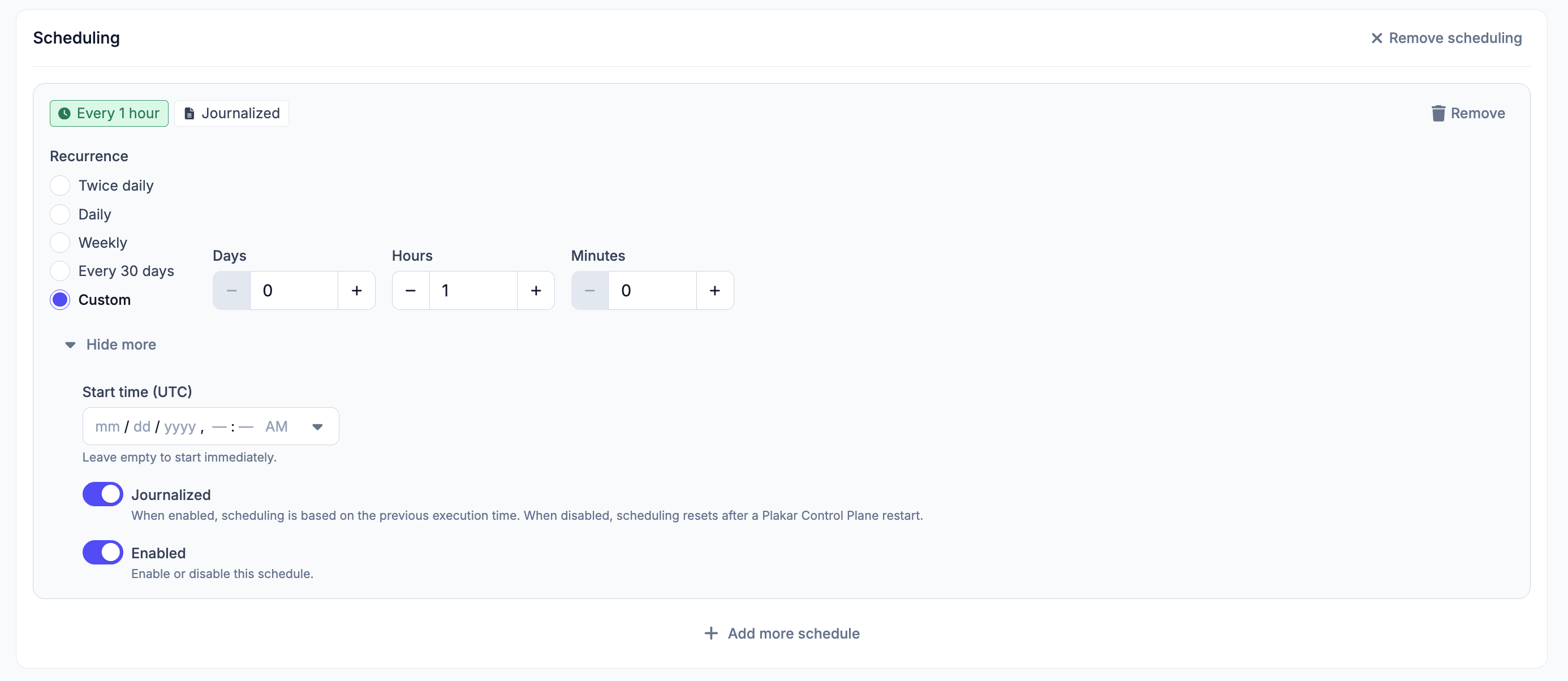
#Once the task is configured, you can run it immediately as a one-off operation by saving it without attaching any schedules. To run it on a recurring basis, attach one or more schedules. A task can have any number of schedules, each configured independently with the following fields.
Recurrence
#How often the schedule runs. Available options: twice daily, daily, weekly, every 30 days, or custom. For a custom recurrence, enter the interval in days, hours, and/or minutes.
Start Time (UTC)
#The date and time at which the schedule first runs, specified in UTC down to the minute. If left empty, the schedule starts immediately.
Journalised
#When journalised mode is enabled, each execution is scheduled relative to the previous one. When disabled, the schedule resets its reference point after a Plakar Control Plane restart.
Enable
#Schedules can be enabled or disabled independently. Disabling a schedule pauses it without deleting it.
Job History
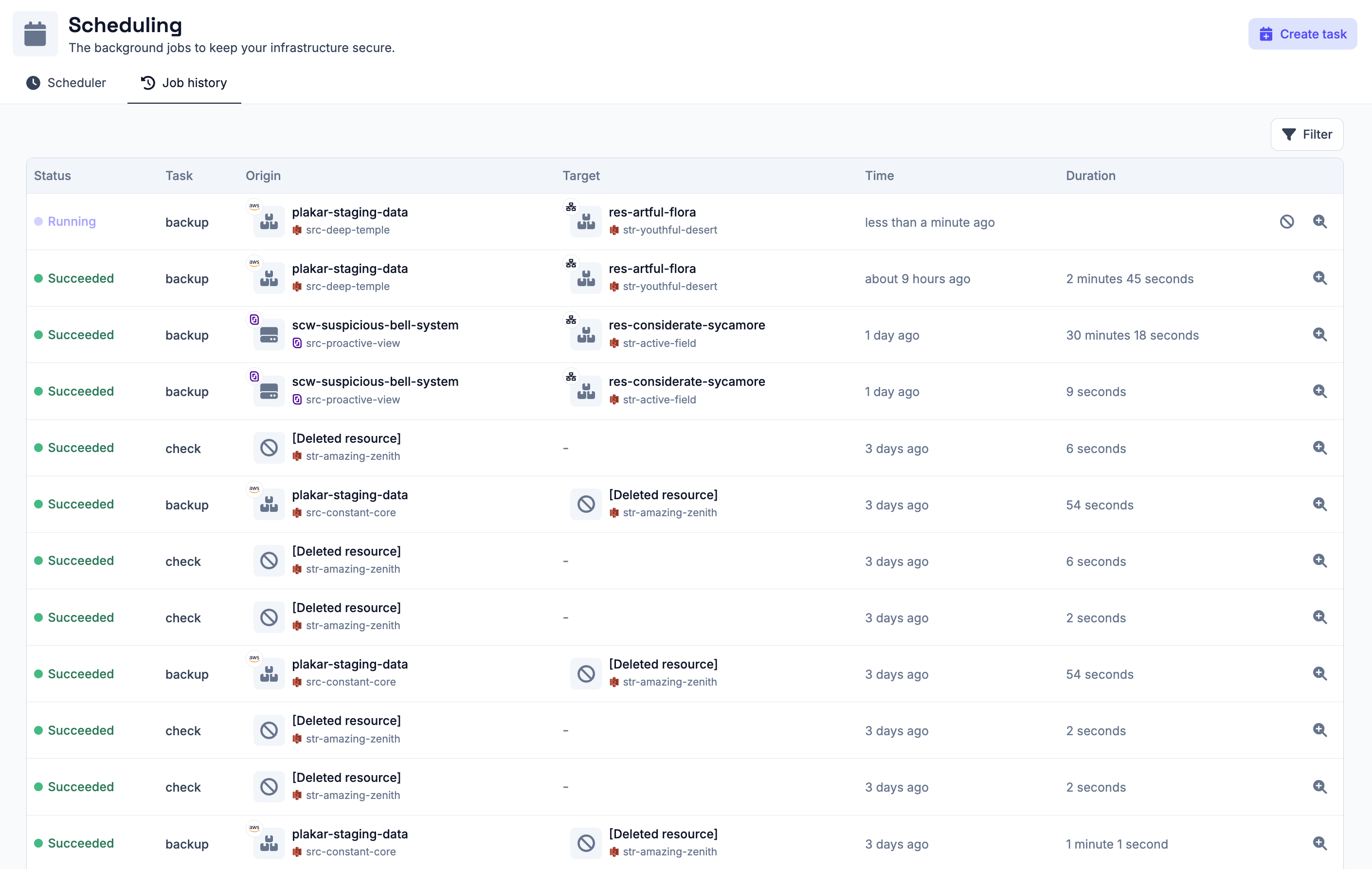
#The Operations > Scheduling section includes a Job History tab that lists all jobs that have run, whether they succeeded or failed, along with any jobs that are currently running.
Viewing Job Details
#Each job has a details popup with the following information:
- Job ID - a unique identifier for the job
- Status - the outcome of the job: succeeded, failed, or running
- Snapshot - a link to browse the snapshot produced by the job, where applicable
- Progress - the current progress of the job
- Output - the full log output for the job, useful for diagnosing failures
If a job is currently running, the output updates in real time and a Cancel button is available to stop the job.

Jobs and Schedules on Connectors
#Each connector also surfaces scheduling information on its own details page:
- The Dashboard tab lists all past and upcoming jobs involving that connector, scoped to that connector only.
- The Scheduling tab lists all schedules that involve that connector, so you can see at a glance what is configured to run and when.
This makes it easy to check the backup history or scheduled operations for a specific source, store, or destination without going through the global job history.