AWS Secrets Manager
#AWS Secrets Manager can be added as a secret provider in Plakar Control Plane by selecting aws-sm as the integration type when creating a new secret provider.
Currently, AWS Secrets Manager is only supported for Plakar Control Plane deployments running on AWS using an attached IAM role. Access key authentication for AWS Secrets Manager is not currently supported.
When adding the secret provider, you must provide:
- A name for the secret provider
- The AWS region where your secrets are stored
Plakar Control Plane will use the IAM role attached to the EC2 instance to authenticate against AWS Secrets Manager.
Required Permissions
#To allow Plakar Control Plane to read secrets from AWS Secrets Manager, the IAM role attached to the instance must include the following permissions as well. This is added on top of the resource discovery permissions needed already and mention in the aws-inventory documentation:
{
  "Version": "2012-10-17",
  "Statement": [
    {
      "Effect": "Allow",
      "Action": [
        "secretsmanager:GetSecretValue",
        "secretsmanager:DescribeSecret"
      ],
      "Resource": "*"
    }
  ]
}
Creating Secrets
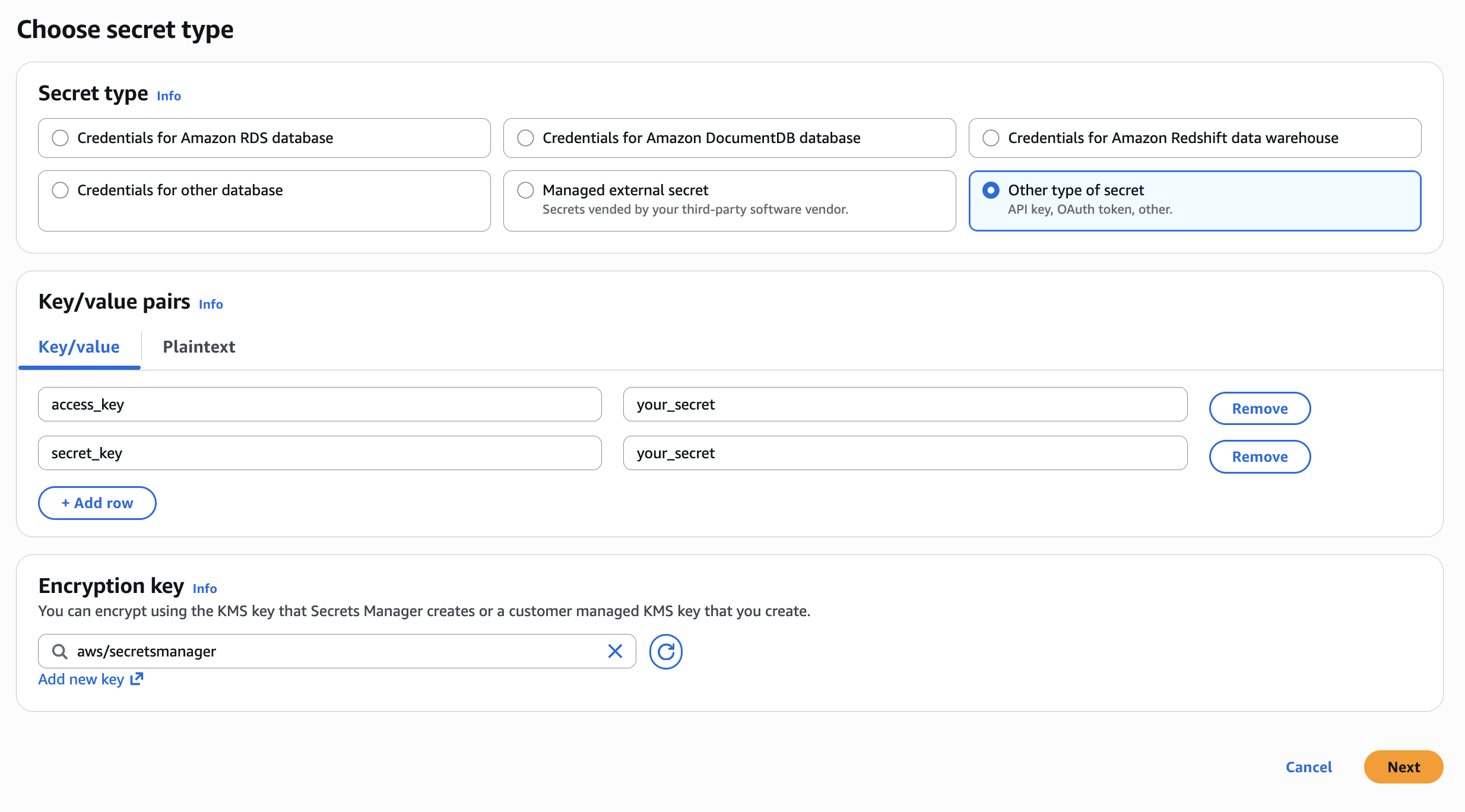
#When creating a secret in AWS Secrets Manager you’ll need to use the Other type of secret and add your key/value pairs. You’ll also need to select an encryption key and provide a name for the secret before saving.
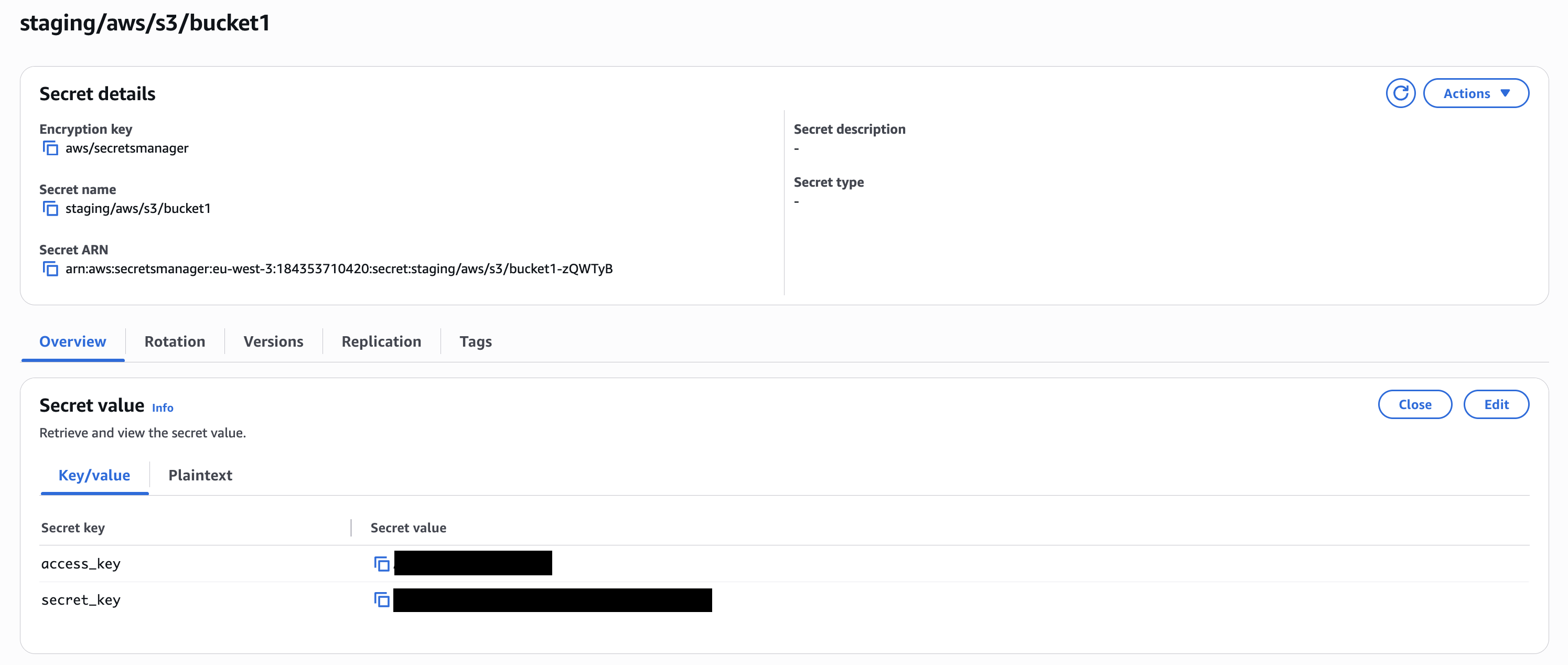
For encryption you can use either the default AWS managed key (aws/secretsmanager) or any custom KMS key. As an example, a secret for an S3 bucket might be named staging/aws/s3/bucket1 and contain keys like access_key and secret_key.
Secret Path Format
#The path format used by Plakar Control Plane is:
{secret_name}#{field}Using the example above:
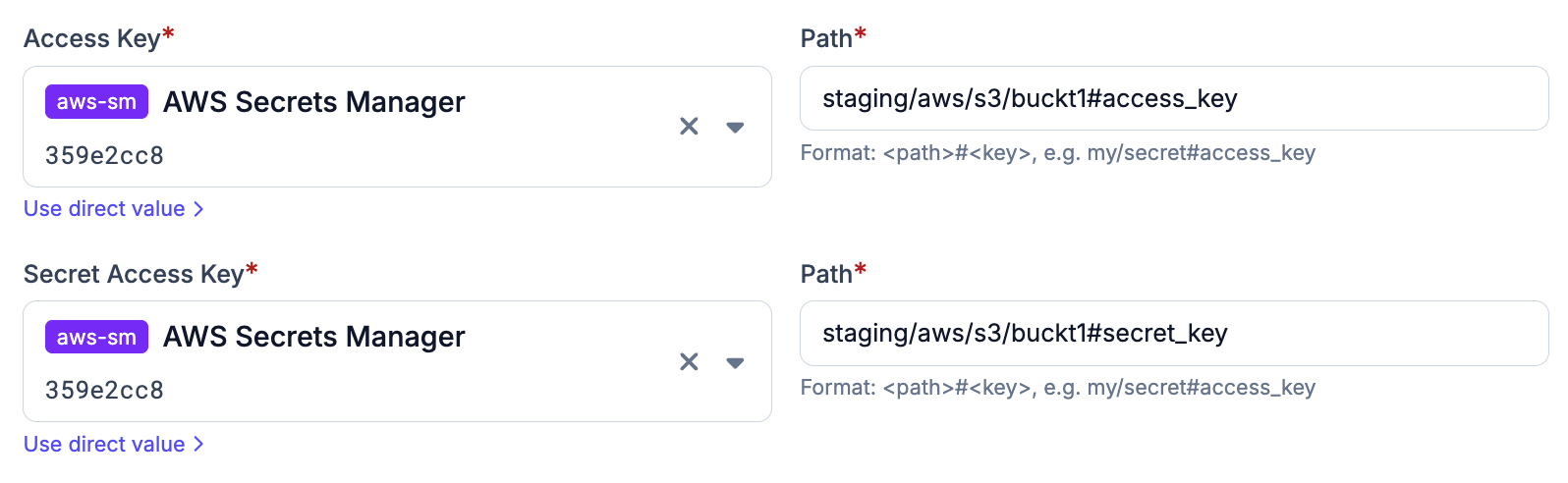
staging/aws/s3/bucket1#access_keyThis would retrieve the value stored under the access_key field inside the staging/aws/s3/bucket1 secret.
Using Secrets in Plakar Control Plane
#Once AWS Secret Manager is configured as a secret provider, you can use it in any form field that requires a credential. Switch the field from direct value to secret provider, select your Vault instance from the dropdown, and enter the path to the secret you want to use.